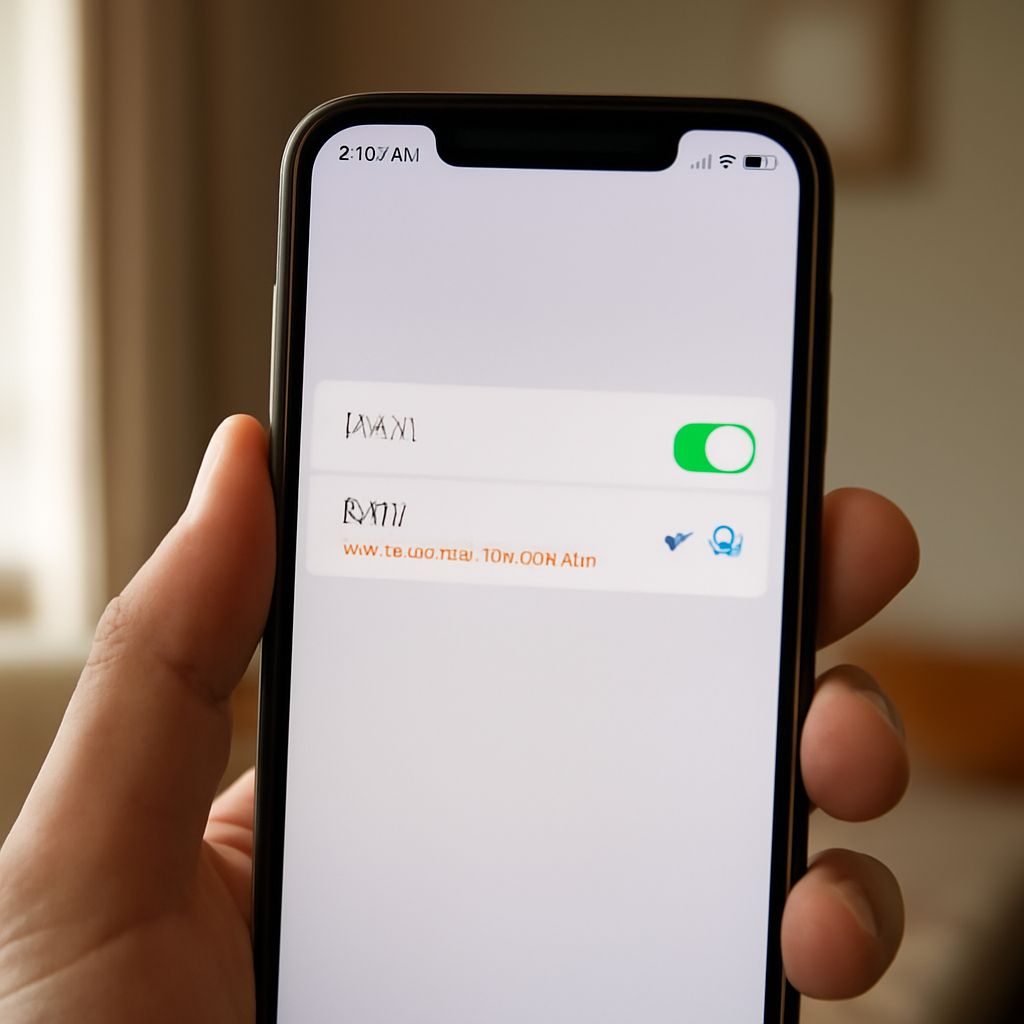
If your phone shows Wi-Fi connected but no internet, the Wi-Fi radio has joined the router, but that does not prove the router can reach the internet. First identify whether the failure is authentication, IP assignment, DNS, the router’s WAN connection, or weak coverage. Each problem has a different fix.
If the phone will not join the network at all, work through the phone and router checks in order. Once it connects, improve reliability by testing location and frequency band before changing 5 GHz channel settings.
Wi-Fi Connected but No Internet: Identify the Failure
Association and authentication: did the phone join?
Association is the initial radio connection between your phone and router. If the network does not appear, disappears immediately, or the phone remains stuck on “connecting,” check distance, router power, and whether the correct SSID is enabled.
Authentication happens when the router accepts the network password and security method. A repeated “incorrect password” message, an authentication error, or immediate disconnection usually points to a wrong password, saved credentials, WPA compatibility, or a router access-control rule. Re-enter the password rather than repeatedly retrying the saved connection.
IP assignment, DNS, or WAN: where does access stop?
After authentication, the router should give the phone an IP address through DHCP. If the phone reports that it is connected but has no usable IP address, DHCP may be disabled, the address pool may be full, or the router may be malfunctioning. An address beginning with 169.254 often indicates that the phone assigned itself an address because DHCP did not respond.
If the phone has a normal local IP address but websites do not load, test the distinction between DNS and WAN failure. A DNS problem prevents names such as example.com from resolving, while a WAN or ISP problem prevents the router from reaching the wider internet. Open the router’s status page: if local devices work but its internet or WAN status is offline, focus on the modem, cable, or ISP rather than the phone.
Use symptoms, not the Wi-Fi icon, to identify the failure
- Network absent: the router may be off, out of range, on a different channel or band, or hiding the SSID.
- Password or authentication error: check credentials, security mode, and access restrictions.
- Connected with no IP: investigate DHCP, address exhaustion, or a router software fault.
- Connected with an IP but no websites: test DNS and the router’s WAN connection.
- Works near the router but not farther away: treat it as weak coverage or interference.
Why Won’t My Phone Connect to Wi-Fi?
1. Check the phone: toggle Wi-Fi, forget and rejoin, and test another network
- Turn Airplane Mode on for about 10 seconds, turn it off, then toggle Wi-Fi off and on.
- Confirm that the phone is selecting the correct network name. Move close to the router and try again.
- Forget the network, restart Wi-Fi, and rejoin by typing the password manually. Check capitalization and special characters.
- Temporarily disable a VPN or custom Private DNS setting, which can interfere after the phone has joined.
- Test the phone on another Wi-Fi network, such as a hotspot. If it joins elsewhere, the home router or its settings are the likely cause. If it cannot join any network, update the phone and investigate its network hardware or software.
2. Check the router: verify the SSID, security, DHCP, and WAN status
Sign in to the router from a connected device. Confirm that the intended SSID is broadcasting and that Wi-Fi access has not been paused for the phone. Check whether MAC filtering, parental controls, a client limit, or a blocked-device list is rejecting it.
Review security settings if the phone reports an authentication problem. WPA2-Personal is broadly compatible; WPA3-only mode can prevent older phones and smart-home devices from joining. If the router combines 2.4 GHz and 5 GHz under one name, temporarily give the bands separate names to test them individually.
Make sure the DHCP server is enabled and has unused addresses. Then check the router’s WAN status and modem connection. A phone may join the local network normally while every device lacks internet because the modem is offline or the ISP connection has failed.
3. Restart the modem, router, and phone; reset settings only afterward
Restart in this order: unplug the modem and router for 30 seconds, power on the modem, wait until its connection light is stable, power on the router, and then restart the phone. This clears temporary DHCP and radio faults without deleting configuration.
Only after those checks should you use the phone’s reset network settings option. It removes saved Wi-Fi networks, paired Bluetooth devices, and some mobile-network settings, so keep passwords available. Avoid a router factory reset until you have saved its configuration and confirmed that simpler fixes failed.
How to Boost Wi-Fi Signal at Home
Spot weak coverage by testing distance, walls, and dead zones
Test the phone beside the router, in the problem room, and outside the suspected dead zone. If connection and speed are good nearby but deteriorate through several walls, the issue is coverage rather than authentication or WAN access. Thick masonry, metal, mirrors, appliances, and neighboring networks can weaken or disrupt the signal.
Move the router and choose 2.4 GHz or 5 GHz
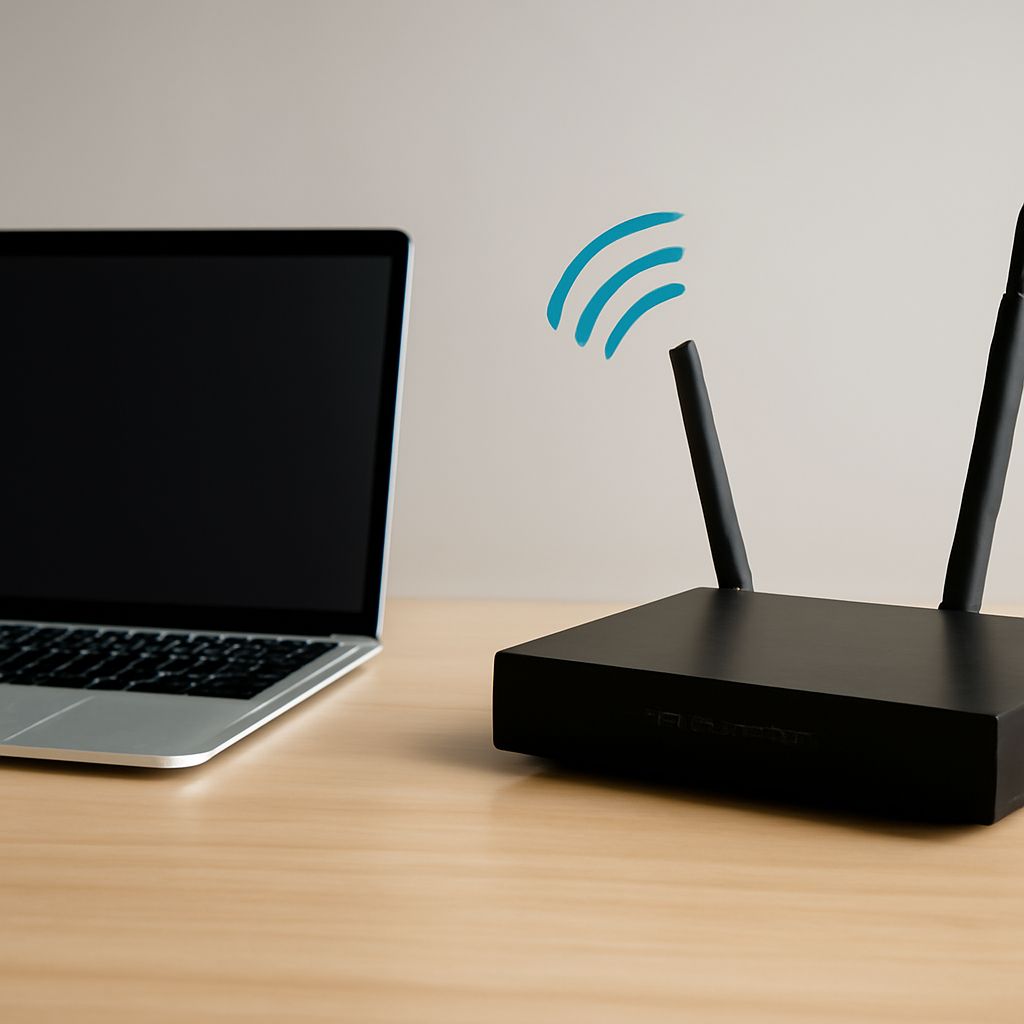
Place the router centrally, elevated, and in the open, with its antennas positioned as the manufacturer recommends. Keep it away from metal cabinets, enclosed shelves, cordless-phone bases, and large appliances. For a larger home, a properly placed mesh node or access point is usually more effective than increasing transmit power alone.
Use 2.4 GHz for longer range and better wall penetration. Use 5 GHz for higher potential speeds at moderate range, especially where 2.4 GHz networks are crowded. A phone that works reliably on 2.4 GHz but drops on 5 GHz is probably beyond the practical 5 GHz coverage area or affected by channel compatibility.
Verify the improvement with a repeat signal and speed test
After moving the router or changing bands, repeat the same test locations. Compare connection stability, latency, and download speed rather than relying only on the number of signal bars. A strong Wi-Fi icon measures the phone’s link to the router; it does not confirm a working internet connection.
Which 5 GHz Channels Should You Use?
Start with non-DFS channels: 36–48 or 149–165
For the simplest compatibility, start with the ordinary non-DFS 5 GHz channels, commonly 36–48 or 149–165. Exact availability and permitted transmit power vary by country and router. These channels generally let compatible devices join immediately without radar checks, making them a good first choice for phones, older laptops, and smart-home equipment.
Balance 20, 40, and 80 MHz width against range and stability
Channel width controls how much spectrum one Wi-Fi network occupies. An 80 MHz channel can deliver higher peak speed at short range, but it is more likely to overlap congestion and become unstable as the signal weakens. A 40 MHz setting is a useful middle ground. Choose 20 MHz when reliability and coexistence matter more than maximum throughput, such as in apartments or at the edge of coverage.
Use a channel scan to choose a less-congested option
Run a Wi-Fi analyzer or the router’s channel scan from the area where performance is poor. Choose a channel with fewer competing networks, then retest at the same distance. Leave channel selection on Auto if it reliably chooses well; manual selection is useful when Auto repeatedly moves to a crowded or incompatible channel.
When Do DFS Channels Help?
Try DFS channels such as 52–144 when congestion is high
DFS channels are 5 GHz channels that share spectrum with radar systems. Depending on local rules, the DFS range commonly includes channels 52–144. They can provide a quieter path when non-DFS channels are crowded, particularly in dense buildings, but the router must listen for radar before transmitting.
Check radar events and device compatibility before switching
A router using DFS may take longer to start a network, temporarily stop broadcasting, or move to another channel after detecting radar. Some phones, older laptops, cameras, and IoT devices do not support DFS and may not display the network at all. Region, firmware, and country settings also affect which channels are available.
Keep a non-DFS fallback for older clients
If any device disappears after the change, return to a non-DFS channel such as 36–48 or 149–165, reduce channel width to 40 or 20 MHz if needed, and test again. DFS is worthwhile only when its lower congestion produces a measurable improvement without sacrificing device compatibility.