Your group wants quick voice updates, but ordinary calls make everyone stop and answer. A phone app with walkie-talkie controls can let one person press to speak and the others listen. Choose by the phones your group owns, the network available where you will use it and whether you need individual contacts or a shared channel.
A two-way radio-style app is usually an internet service, not a direct radio transmitter. Both ends need the connection that the particular app requires. Before relying on it at an event or job site, test messages with the screen locked and in the places where people will actually work.
Two way radio app: how the connection works
Push-to-talk (PTT) means holding a control while speaking and releasing it to let another person respond. In many phone services, the audio travels over Wi-Fi or cellular data to the provider and then to recipients. The people talking can be far apart if each has a usable internet connection, but a nearby partner cannot receive a message when the required connection is unavailable.
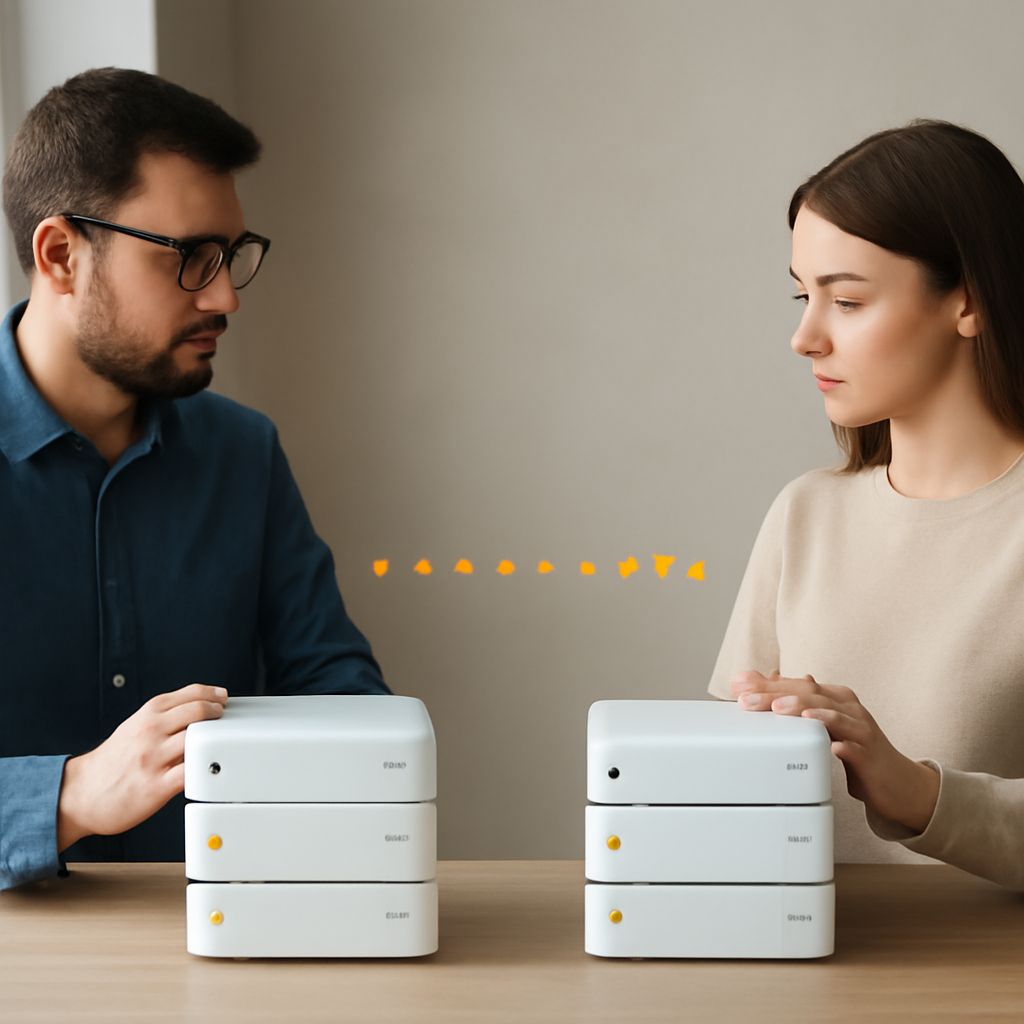
Other designs can use a local network or a separate radio accessory. A local-only system needs compatible phones on the same supported network and remains limited by that network’s coverage; verify whether the specific app also depends on an external server. An accessory-based system needs compatible hardware on each end, and its range depends on that radio and the terrain. Confirm whether it supports live voice or only messages before buying.
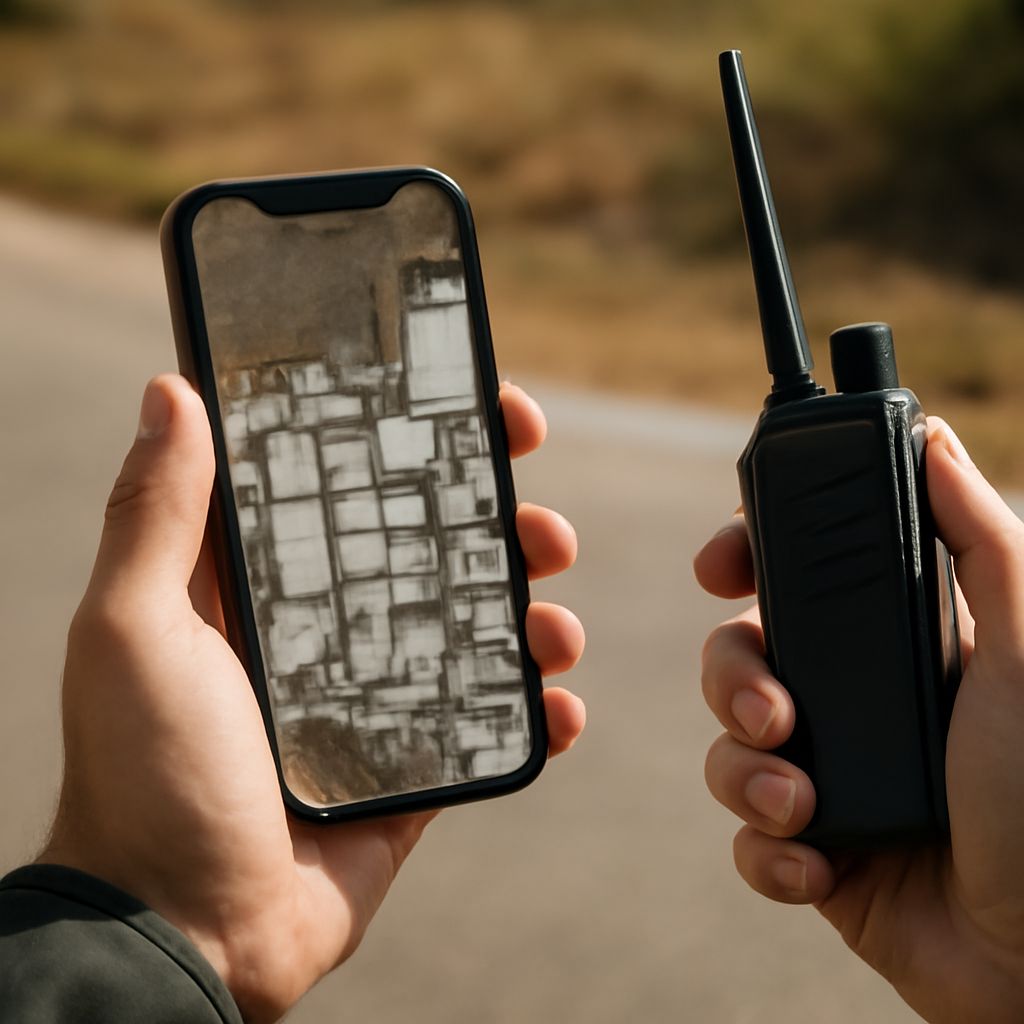
A cell phone walkie talkie app does not automatically make a phone compatible with a handheld FRS or GMRS radio. Those radios transmit directly using their own radio hardware. They can operate without cellular service within radio range, subject to terrain, obstructions, power and applicable rules. A bridge between a phone service and radio requires compatible equipment and configuration.
Compare two internet-based options
Zello supports Android and iOS users communicating with contacts and channels. Its connection requirements specify internet access through Wi-Fi or cellular. Participants need the app and an account for the relevant service. Choose it when a group wants contact and channel communication across those phone platforms; check the current personal or business offering and the privacy settings of each channel before inviting people.
Zello’s background behavior depends on device and settings. Its iOS settings guidance describes background keep-alive and options for queued delivery. Test with the screen locked, notifications permitted and the intended availability status selected. A queued message heard later is different from a live warning.
Microsoft Teams Walkie Talkie works in the Teams mobile app on supported iOS and Android devices and uses standard or private Teams channels. It requires internet and a suitable paid Teams license; an administrator must allow it for the organization. Microsoft’s deployment guide describes supported devices and configuration. This is a practical choice when colleagues already use Teams and need an organization-managed group, rather than a simple link to an unaffiliated friend.
Both options require the group to use the same service. A two way radio app cannot normally talk directly to a contact on a competing service merely because both have a push button. Confirm who can join, whether channel membership is private, and whether the app is available for every person’s device and region.
Compare controls before committing
Walkie talkie apps can look similar on a screen while behaving differently in a pocket. Check these details with the people who will use them:
- Contacts and groups: Can you invite the intended people, restrict access and remove someone? Check whether group size or administrative features depend on a paid plan.
- Audio: Test microphone permission, speaker volume, Bluetooth or wired headsets, and any physical PTT button. In a noisy space, check whether speech is understandable and whether a message plays aloud unexpectedly.
- Background use: Lock the screen and switch apps. Send in both directions, check notifications and battery restrictions, and confirm that receiving does not require the app to be open in front.
- Delivery and account: Check whether missed messages are stored, replayed or lost. Confirm sign-in, age and organization requirements, pricing and any data use on cellular plans.
- Coverage: Walk through the actual building or route. A Wi-Fi icon alone does not prove that the app can reach its service; check for usable data at both ends.
A two-way voice app may support a headset button only on particular phones or accessory models. Pair and test the exact combination rather than assuming every Bluetooth button will transmit. Also decide when the app should be muted, since an incoming message may be audible to people nearby.
When a handheld radio fits better
For a short hike or a work site without reliable data service, direct radios may be the more suitable tool. Test the actual units over the intended route: hills, buildings and even body position affect performance. In the United States, FRS and GMRS have different equipment and licensing rules; choose compatible equipment and follow the rules for the service used.
For friends with dependable Wi-Fi or cellular, choose a walkie talkie app that everyone can install and operate comfortably. For an existing workplace on Teams, check the organization’s license and channel setup. If the goal is communication beyond network coverage, choose and test compatible direct radios or a purpose-built radio accessory rather than relying on an internet-only phone service.