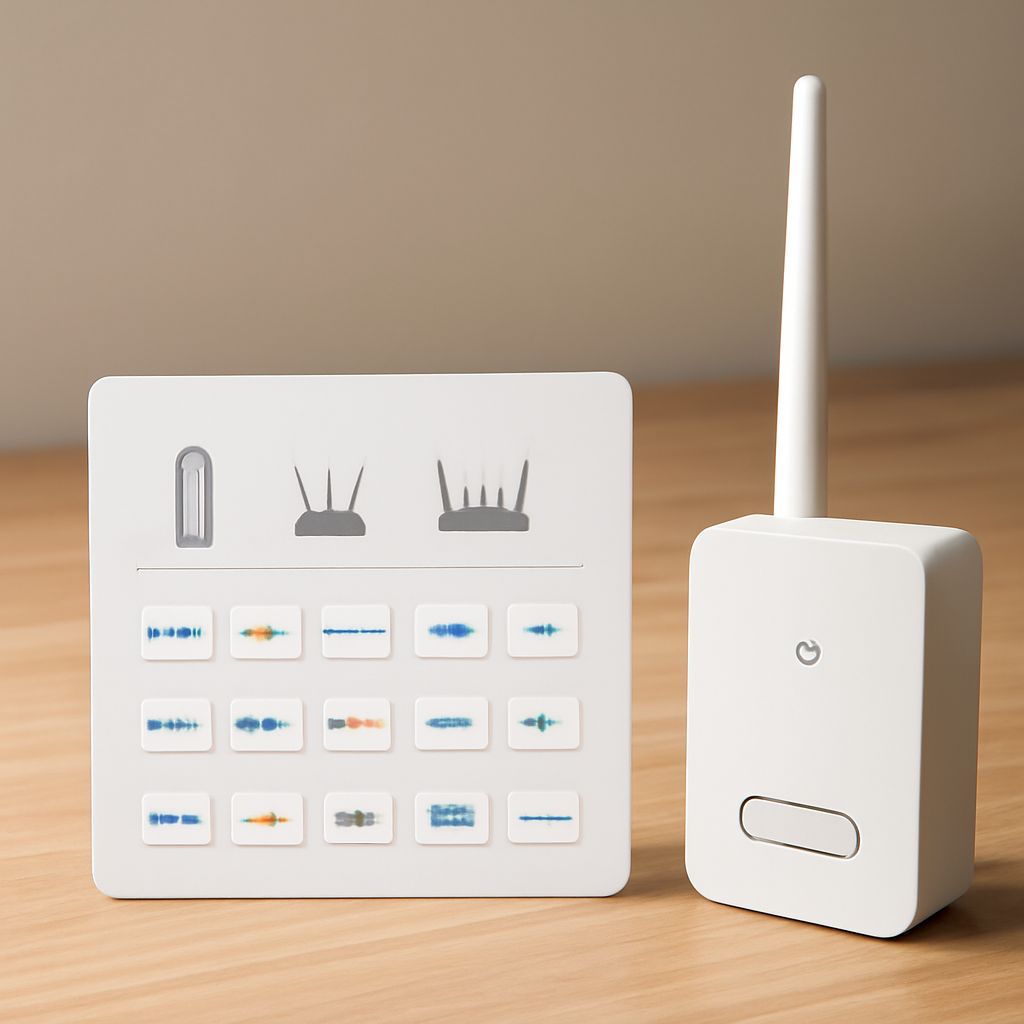
A wireless access point for home improves Wi-Fi coverage by creating a nearby wireless cell, usually through an Ethernet connection to your router. It does not automatically improve internet service, routing, DHCP, or a failing modem.
That distinction also makes troubleshooting easier. Test a wired device, the main router’s Wi-Fi, and the access point separately before buying hardware. Most home routers remain useful for about three to five years, but instability, heat, limited capacity, outdated security, or obsolete Wi-Fi standards can justify an earlier replacement.
Is a Wireless Access Point for Home the Right Fix? Coverage vs. Routing
An access point handles wireless access: it broadcasts a network name, accepts Wi-Fi clients, and bridges their traffic onto your wired network. It is the right addition when the router works normally but its signal does not reach a bedroom, office, garage, or another floor.
- Coverage: An access point adds stronger Wi-Fi in a distant area. Place it where Ethernet can reach and where it can still serve the surrounding space.
- Routing: The router directs traffic between your home network and the internet, applies firewall rules, and usually assigns local addresses through DHCP.
- WAN access: The router’s WAN connection leads to the modem or an integrated modem-router. If the WAN has no usable connection, an access point cannot repair it.
- Modem function: A separate modem translates your provider’s cable, fiber, or DSL service into Ethernet. Some gateways combine modem, router, and Wi-Fi functions in one box.
Do not replace a router solely because coverage is poor. A wired access point, or a properly placed wired mesh node, solves that problem while preserving the existing routing setup. Wireless repeaters can help where cabling is impossible, but they generally sacrifice capacity and add another wireless link to troubleshoot.
Connected to the Router but No Internet? Test Ethernet, Wi-Fi, DHCP, and WAN Access
Use this order to identify the failing layer. First check whether the problem affects one device or every device. A single affected phone or laptop may have a local configuration problem; a failure on wired and wireless devices points toward the router, modem, or provider.
- Test Ethernet at the router. Connect a computer directly to a LAN port with a working Ethernet cable, turn off its Wi-Fi, and wait for an address. An address such as 192.168.x.x or 10.x.x.x usually shows that DHCP is working. An address beginning with 169.254 indicates that the router did not provide an address, so investigate the cable, LAN port, DHCP service, or router.
- Test the main router’s Wi-Fi nearby. Stand close to the router and connect a phone or laptop. If Ethernet works and nearby Wi-Fi fails, check the router’s wireless settings, radio schedule, security mode, and firmware. If nearby Wi-Fi works but a remote room fails, the issue is coverage rather than internet access.
- Test the access point separately. Connect a client to the access point while checking its Ethernet uplink. If direct Ethernet and the router’s own Wi-Fi reach the internet but access-point clients do not, inspect the uplink cable, access-point mode, VLAN settings, and DHCP configuration. In access-point mode, the main router should normally provide addresses.
- Check WAN and modem status. If wired and wireless clients receive valid local addresses but websites do not load, open the router’s status page. A missing WAN address, failed gateway, or disconnected modem points to the modem, router WAN link, or provider service. Check modem indicator lights and the provider’s outage information before changing LAN equipment.
- Separate DNS from total internet failure. If a device can reach a known public IP address but not ordinary website names, the connection may work while DNS fails. Try the router’s automatic DNS settings or a reputable alternate DNS service, then retest.
Restarting the modem and router can restore a temporary session, but repeated failures are diagnostic evidence. Record which test works: that result tells you whether to repair coverage, the LAN, the WAN, the modem, or the upstream service.
What Is the Average Life of a Wireless Router? Plan on 3–5 Years
The average life of a wireless router is commonly about three to five years under normal home use. A lightly used router may last longer, while a heavily loaded or poorly ventilated unit may become unreliable sooner. Lifespan is not only about whether the power light still turns on.
- Instability: Frequent reboots, dropped connections, lockups, or a need to restart the router indicate possible hardware or firmware trouble.
- Capacity: Smart-home devices, cameras, streaming, and work systems can exceed an older router’s processing, memory, or connection-tracking capacity.
- Support: If the manufacturer no longer supplies security updates or the router cannot use current management protections, replacement reduces avoidable risk.
- Heat: Excessive warmth, fan noise, or failures that appear after prolonged use suggest inadequate cooling or aging components.
- Standards: Old Wi-Fi generations may deliver lower speed, efficiency, and client capacity even when coverage remains acceptable.
Compare wired performance with Wi-Fi before blaming age. If direct Ethernet is stable and only distant wireless clients struggle, the router may be healthy and an access point is the better upgrade.
Which Network Layer Should You Upgrade Without Rebuilding?
Choose the smallest replacement that matches the failed layer:
- Poor signal in one area: Keep the router and install a wired access point. Use Ethernet backhaul whenever possible.
- Access-point clients fail but router clients work: Repair or replace the access point, its cable, or its configuration.
- All clients lose internet while keeping local access: Test the router’s WAN, modem function, and provider service before replacing Wi-Fi hardware.
- Wired and wireless clients lose addresses or the router repeatedly crashes: Replace the router. If it also contains the modem, ask the provider about gateway replacement or use a separate modem and router.
- The router is stable but outdated or overloaded: Replace it with a current router, then retain existing access points if they support the required security and performance.