The best Wi-Fi settings for calling and texting prioritize a stable connection rather than maximum download speed. Place the router in a central, elevated location, use 5 GHz or 6 GHz when your phone is nearby, and switch to 2.4 GHz when range matters more than speed.
Wi-Fi Calling, app-based calls, carrier texting, and internet messaging use different systems. Enable the service your phone and account support, then test audio, message delivery, and the transition between Wi-Fi and cellular service before relying on it.
What are the best Wi-Fi settings for calling and texting?
Keep the phone within strong router coverage and reduce obstacles such as thick walls, appliances, and crowded wireless networks. A reliable connection with low latency and little packet loss is more important for voice quality than a high speed-test score.
- Choose the band by distance: Use 5 GHz or 6 GHz close to the router for lower congestion. Use 2.4 GHz farther away for better range, if the network remains stable.
- Place the router carefully: Put it in an open, central position rather than inside a cabinet or at the edge of the home.
- Use a consistent network: Avoid overloaded guest networks, weak mesh nodes, and Wi-Fi extenders that create frequent handoffs.
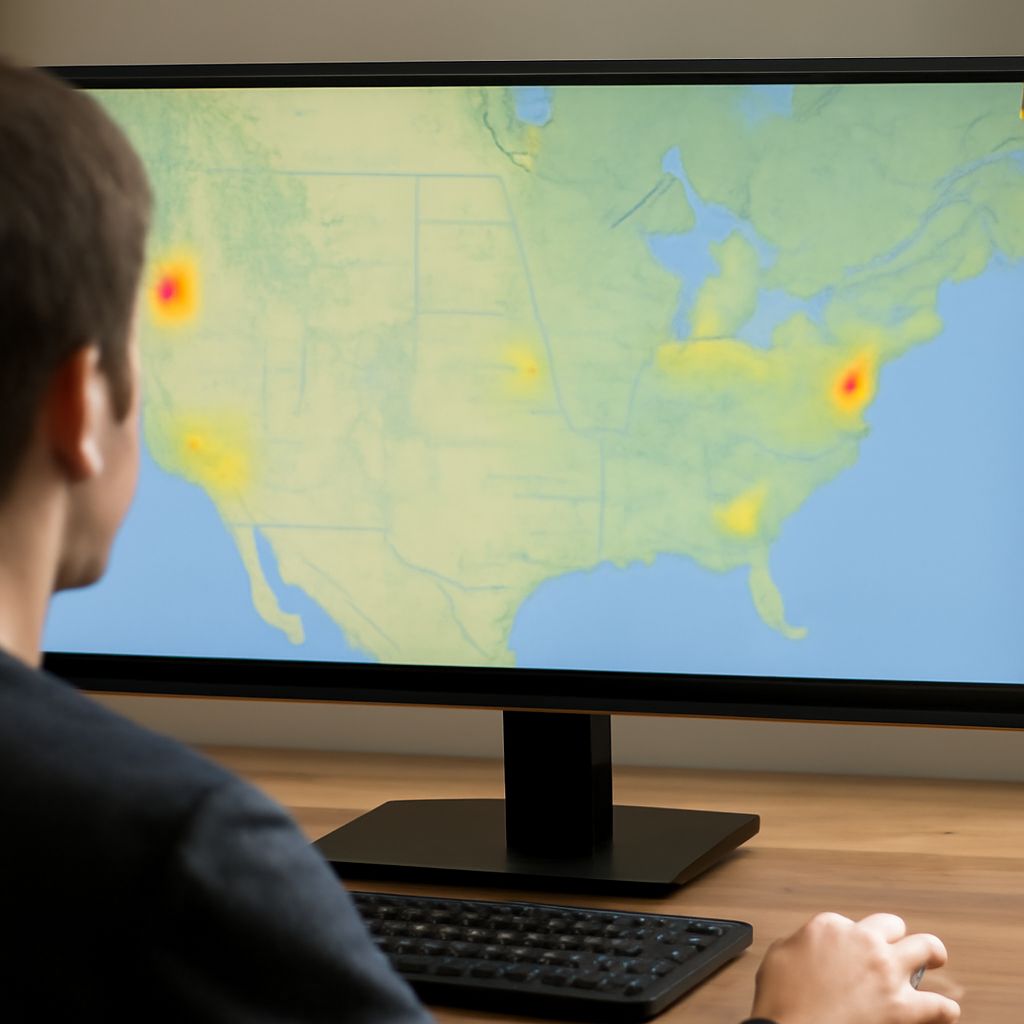
- Check stability: A router app or ping test can reveal high latency, interruptions, or packet loss that may cause robotic audio and delayed messages.
Keep router firmware and phone software updated. If a phone repeatedly switches between bands or access points during calls, test a fixed band or a closer mesh node; the best choice is the one that keeps latency steady.
How do carrier Wi-Fi Calling, app calls, SMS, MMS, and RCS differ?
Carrier Wi-Fi Calling routes calls from your normal phone number through a Wi-Fi network when your carrier, device, and line support it. It generally uses the phone dialer and preserves carrier features such as voicemail and caller ID. The carrier may need to activate Wi-Fi Calling on the line, and some devices require an emergency-address setup.
SMS and MMS are carrier messaging services. Some carriers integrate them with Wi-Fi Calling, allowing supported SMS or MMS messages to travel through Wi-Fi when cellular coverage is weak. Others require cellular service or mobile data for particular MMS features. A Wi-Fi connection alone does not convert every standard text into a free internet message.
RCS, iMessage, and similar services are internet messaging systems. They can send messages, photos, typing indicators, and read receipts over Wi-Fi when the relevant account and compatible chat service are enabled. Delivery depends on the recipient’s device, settings, and service support.
Third-party apps such as Signal, WhatsApp, FaceTime, and Google Meet use their own internet connections. An app call is usually free between users of that service, but both parties may need the same app. Calls to ordinary phone numbers may cost extra, and the connection still consumes internet data.
How do you enable Wi-Fi Calling and send a text message over Wi-Fi?
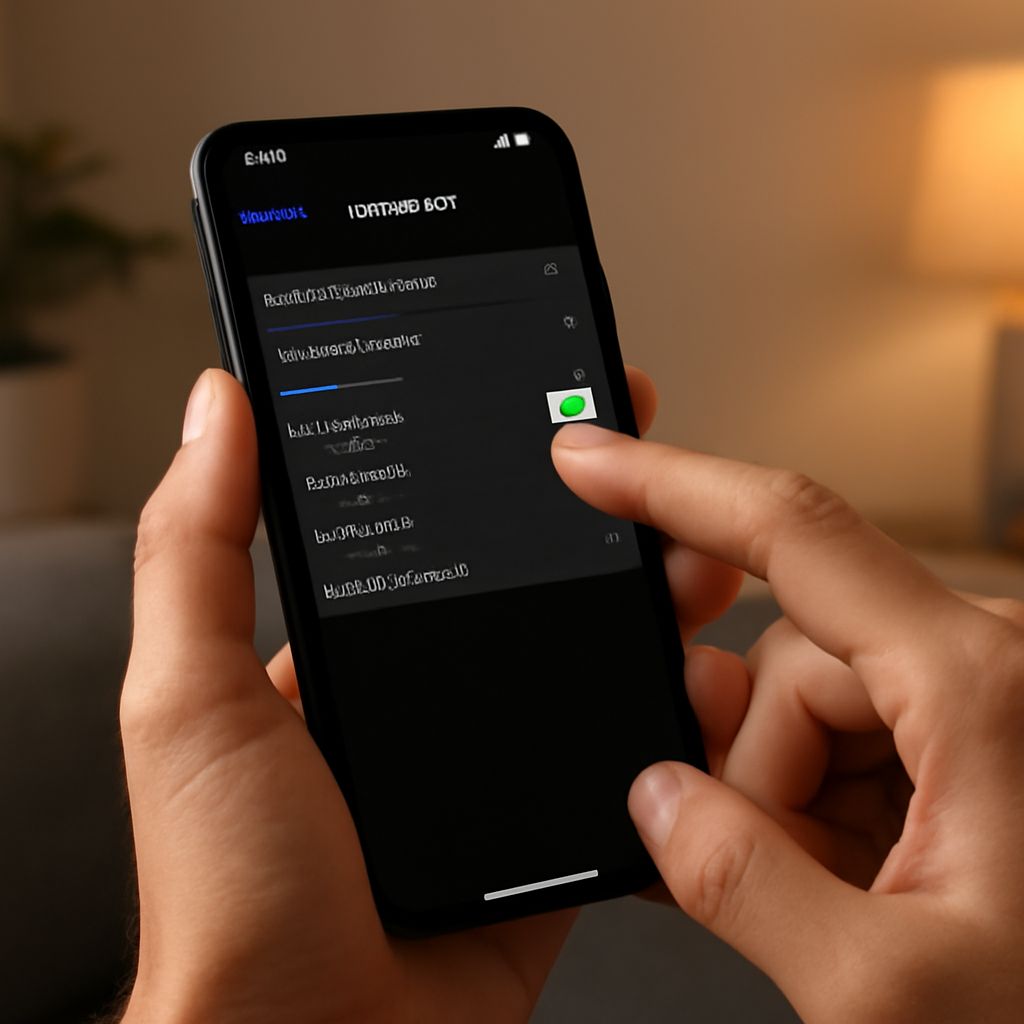
- Enable carrier calling: On iPhone, open Settings > Cellular, select the line, and choose Wi-Fi Calling. On Android, look under Settings > Network & internet or Connections > Wi-Fi Calling. Menu names vary by manufacturer and carrier.
- Confirm activation: Accept any carrier terms, enter an emergency address if requested, and look for a Wi-Fi Calling label near the signal indicator.
- Enable internet messaging: Turn on RCS chats in Google Messages, or use the messaging settings for iMessage or another supported service. Both the account and the recipient must be compatible for advanced features.
- Test carrier texting: Send a short SMS, then an MMS with a photo. If either fails on Wi-Fi, check whether the carrier requires mobile data or cellular coverage for that message type.
- Enable an app service separately: Sign in to Signal, WhatsApp, FaceTime, or another app and confirm the contact uses the same service.
When are free calls over Wi-Fi really free, and how do you test them?
Free calls over Wi-Fi have different meanings. A carrier Wi-Fi call may have no separate Wi-Fi fee but still follow your phone plan’s minutes, international rates, roaming rules, and account restrictions. Some plans include calls normally; others charge for international destinations or calls made while roaming. An app-to-app call may avoid per-minute charges, but it uses your internet service and may consume mobile data if Wi-Fi drops.
Test the setup in this order:
- Connect to Wi-Fi and place a call to a known contact. Confirm that the phone shows Wi-Fi Calling or that the selected app is connected.
- Talk for several minutes and listen for delay, clipped words, echoes, or robotic audio. These indicate congestion, latency, or packet loss.
- Send an SMS, MMS, and RCS or app message where available. Confirm delivery on the recipient’s device, not just the sender’s screen.
- Walk toward the edge of Wi-Fi coverage or disable Wi-Fi during a call. Check whether the call hands off to cellular smoothly or drops. Roaming and handoff behavior varies by carrier, device, router, and app.
- Review the carrier account or call log afterward. Verify how the call and messages were categorized before using the setup while traveling or making international calls.