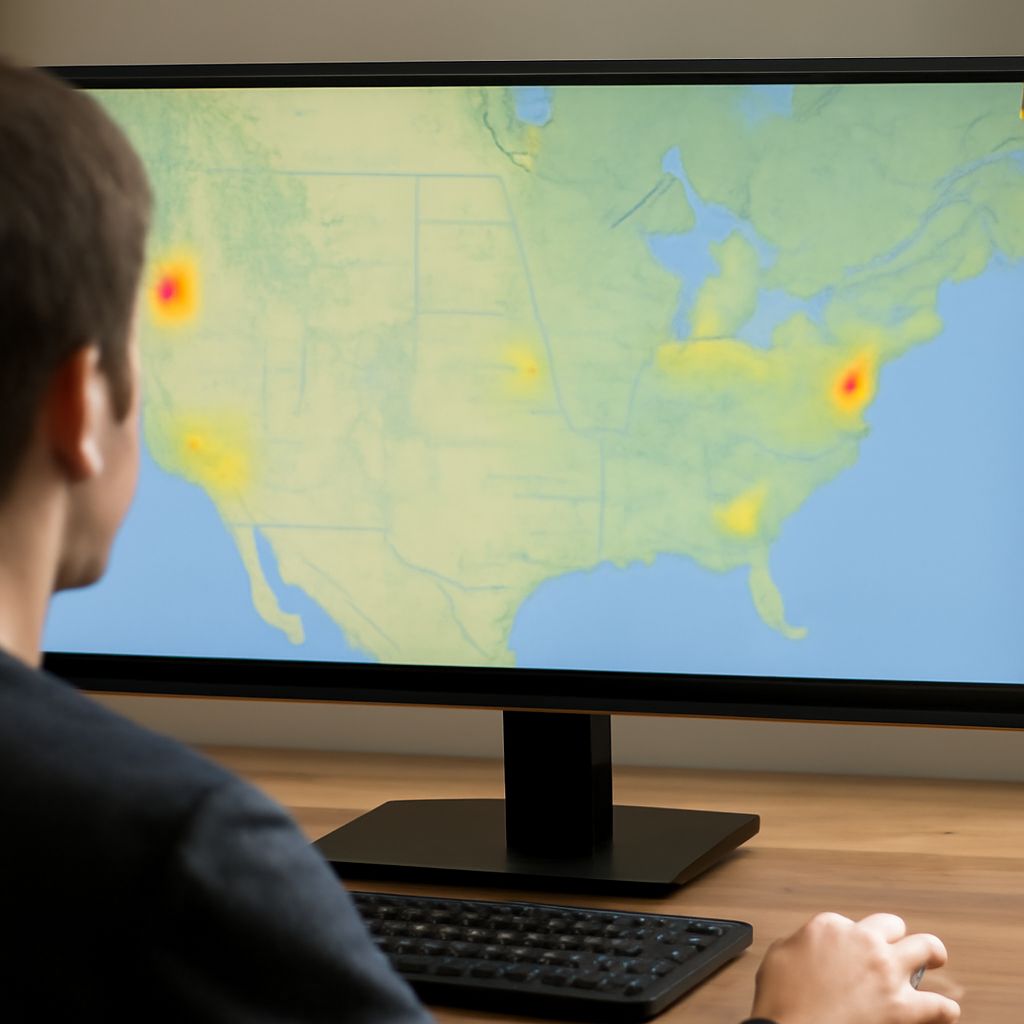
If your broadband modem is experiencing connectivity issues, fix the gateway before adding an access point. Check the modem or gateway’s service link, then the router WAN connection, DHCP, DNS, Ethernet, and Wi-Fi in that order. An access point cannot repair an unstable internet connection.
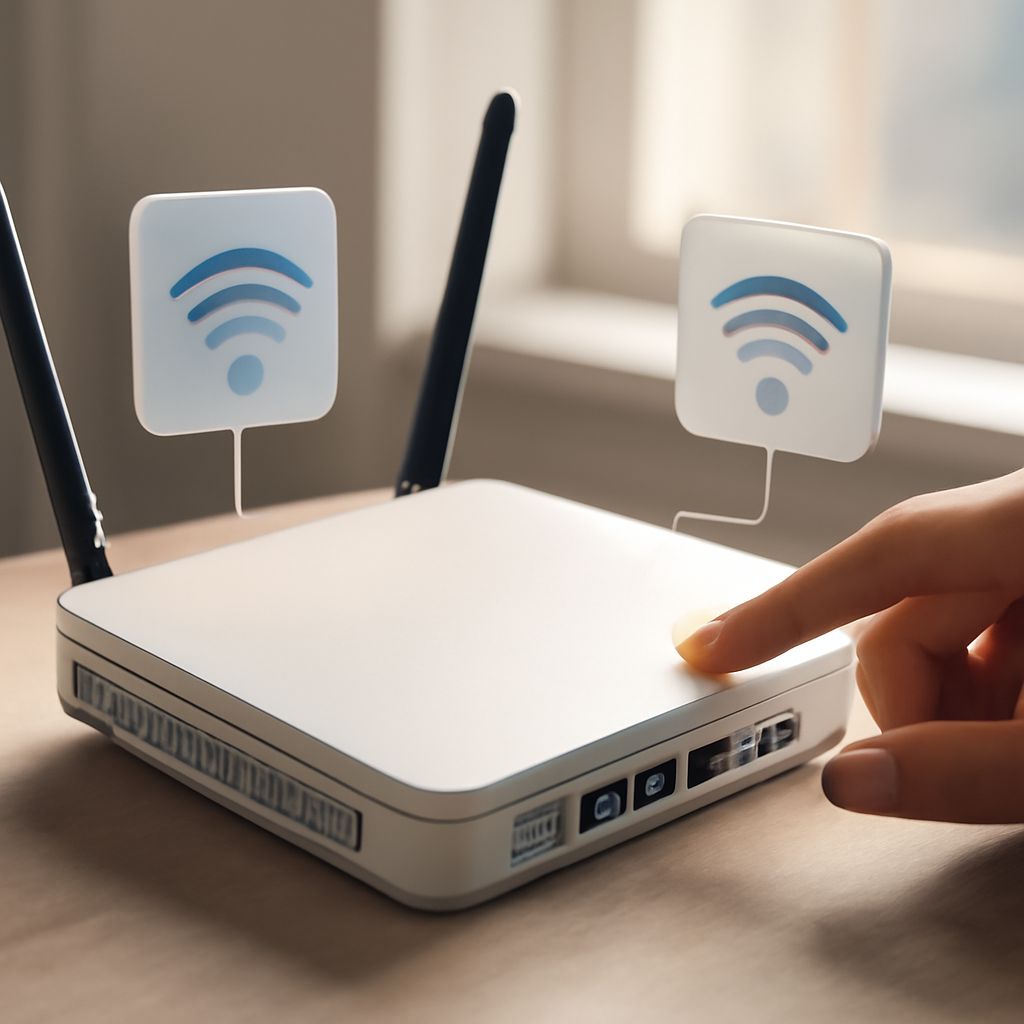
Use a wired access point when possible. Ethernet provides higher throughput, lower latency, and more predictable roaming. A wireless extension works only when both devices support a compatible bridge, repeater, WDS, or mesh mode.
Broadband modem is experiencing connectivity issues: isolate sync, WAN, DHCP, DNS, Ethernet, and Wi-Fi symptoms
- Check modem sync or link. Open the gateway status page or inspect its LEDs. A missing cable, DSL, fiber, or service link means the problem is upstream of your home network. Reseat the line and power-cycle the gateway once; persistent loss of sync requires the provider or line equipment to be checked.
- Check the router WAN. If the gateway has service but the router reports “no internet” or has no WAN address, inspect the Ethernet cable between them. Confirm the router uses DHCP, PPPoE, or the provider’s required WAN method. In a gateway-router setup, verify that the cable is in the gateway LAN and router WAN ports.
- Separate DHCP from internet failure. A device with an address such as 169.254.x.x did not receive DHCP service. Check that the router’s DHCP server is enabled and that its address pool is not exhausted. A valid local address with no internet points elsewhere.
- Test DNS separately. If websites fail but a known public IP responds, DNS is the symptom. Check the router’s DNS settings, then test automatic provider DNS or a trusted alternate resolver.
- Test Ethernet. Connect one computer directly to the router with a known-good cable. A failed wired test indicates a router, cable, port, or WAN issue rather than Wi-Fi coverage.
- Test Wi-Fi last. If Ethernet works but wireless does not, inspect the SSID, password, band, channel congestion, and client distance. This is a local wireless issue, not necessarily a modem fault.
Verify the LAN and internet baseline before adding an access point
Before setup, confirm that a wired client receives an address from the main router, reaches the router’s management address, resolves DNS names, and loads several websites. Record the router’s LAN subnet, such as 192.168.1.0/24, and its DHCP range. Keep the gateway, router, and access point on the same intended LAN unless you deliberately need separate networks.
Update the router and access point firmware, then identify the access point’s factory management address. Connect only the access point and a setup computer if its address conflicts with the existing LAN. After configuration, reconnect it to the main router and verify that clients retain access while moving between rooms.
Setting up a wireless access point on a wired network: address, DHCP, SSID, security, and channels
- Choose access-point mode. Do not use router, NAT, or firewall mode for a simple extension. Access-point mode bridges wireless clients to the existing LAN.
- Assign management addressing. Give the access point a fixed address outside the router’s DHCP pool, or create a DHCP reservation on the router. For example, use 192.168.1.2 when the router is 192.168.1.1 and the pool begins at 192.168.1.100.
- Keep DHCP ownership centralized. Disable the access point’s DHCP server. The main router should supply addresses, gateway information, and DNS to every client.
- Use the correct uplink. Connect an Ethernet cable from a LAN port on the main router or switch to the access point’s LAN or uplink port. Avoid its WAN port unless the manual specifically defines it for AP mode.
- Configure wireless settings. Use the same SSID, security type, and password across access points for easier roaming. WPA2-AES or WPA3 is preferable; avoid obsolete WEP and mixed legacy security. Use non-overlapping channels where possible, with moderate channel widths in congested areas.
How to connect an access point to a wireless router without a cable: supported bridge modes and airtime costs
How to connect an access point to a wireless router without a cable depends on the device firmware. Look for wireless bridge, repeater, WDS, or mesh node mode. Ordinary AP mode normally expects Ethernet and cannot automatically join a wireless router.
A bridge or WDS link usually requires compatible standards, matching security settings, and sometimes matching brands or firmware families. A repeater can work with broader equipment but often uses the same radio to receive and retransmit traffic, reducing practical throughput and consuming airtime. Keep the devices within strong signal range, preferably with a clear path; placing the repeater at the dead zone produces a weak, slow uplink.
For a wireless uplink, select the main router’s SSID, enter its security key, set the access point’s LAN address, and disable its DHCP server unless the supported mode explicitly manages addressing. After rebooting, test the uplink by checking the client’s gateway and DNS, then measure throughput near both devices. Confirm that clients receive one expected subnet, retain connectivity while roaming, and do not suffer excessive latency or repeated disconnections.