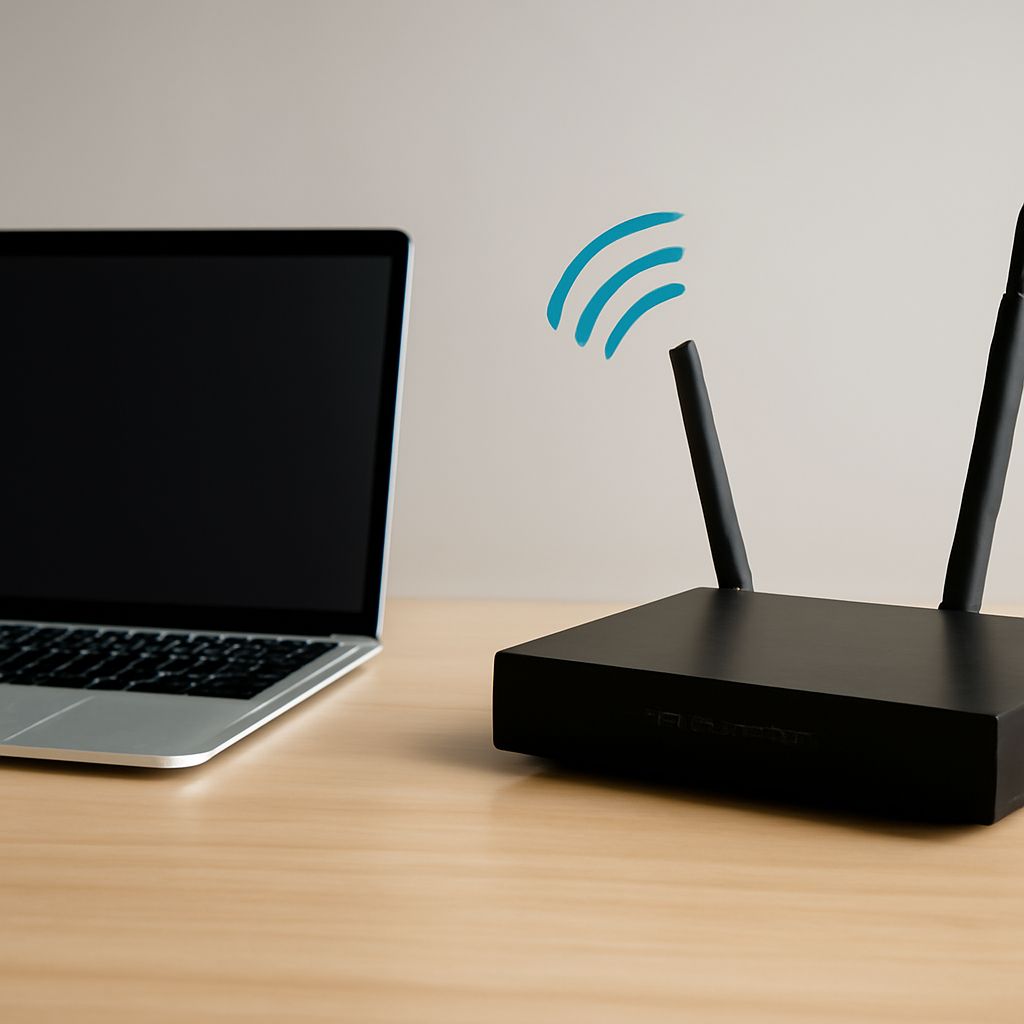
Use 5 GHz for nearby, high-throughput devices such as laptops, phones, TVs, and game consoles. Use 2.4 GHz when a device is separated from the router by several walls, needs maximum range, or supports only the older band. The best 5 GHz wireless channels depend on local congestion, channel width, regional rules, and whether your clients support DFS channels.
In practice, start with a non-DFS 5 GHz channel at 40 or 80 MHz near the access point. Reduce the width to 20 or 40 MHz if neighboring networks compete heavily or the connection becomes unstable. Keep 2.4 GHz available for distant or low-bandwidth devices.
5 GHz vs. 2.4 GHz Wi-Fi: Which Band Fits Your Space?
The bands make different trade-offs:
- Range and obstacles: 2.4 GHz travels farther and generally passes through walls better. 5 GHz has shorter practical range, and dense walls, floors, mirrors, and appliances reduce its signal more quickly.
- Congestion: 2.4 GHz is crowded because Bluetooth, older routers, cameras, and many smart-home devices use it. 5 GHz usually has more spectrum, although nearby 5 GHz networks can still consume available airtime.
- Capacity: 5 GHz supports wider channels and often delivers higher real-world throughput at short and medium distances. A strong 2.4 GHz connection can still be more useful than a weak 5 GHz connection.
- Device support: Most modern phones and computers support both bands, but some printers, plugs, sensors, and older clients support only 2.4 GHz. Some 5 GHz clients also cannot use DFS channels or 160 MHz widths.
Use the same network name for both bands if your router handles band steering well, or separate names when you need to choose manually. Put stationary, bandwidth-heavy clients on 5 GHz and leave low-speed, distant, or compatibility-sensitive devices on 2.4 GHz.
How Are 5 GHz Wireless Channels Organized by Width, Region, and DFS?
5 GHz channels are grouped into regulatory ranges. Common examples include channels 36–48, 52–64, 100–144, and 149–165, but the exact choices depend on your country and router firmware. Channels 52–144 commonly use DFS—Dynamic Frequency Selection—to protect weather and radar systems. Some upper channels are unavailable in certain regions, and channel 165 is often limited to 20 MHz.
Channel width controls how much spectrum one connection occupies:
- 20 MHz: Usually the most reliable choice in a crowded area and the safest compatibility setting.
- 40 MHz: A practical balance between speed and interference for many homes.
- 80 MHz: Often the best starting point for fast nearby devices, provided the local band is reasonably clear.
- 160 MHz: Offers high peak throughput but requires compatible clients, clean spectrum, and strong signal. It is easily disrupted by interference and may provide little benefit at range.
Wider channels combine adjacent channel blocks, so they leave fewer independent choices and overlap more neighboring traffic. A router set to 80 MHz can therefore perform worse than one set to 40 MHz in a busy apartment.
DFS can also affect availability. Before using a DFS channel, the router may wait while it checks for radar. If radar is detected, it must move channels, briefly interrupt service, or make the network disappear while the change occurs. Choose a non-DFS channel when older clients, fixed wireless equipment, or uninterrupted connections matter more than additional spectrum.
How Do You Choose a Channel for 5 GHz Wi-Fi Locally?
Do not select a channel from a universal ranking. A channel that performs well in one building may be crowded or unavailable in another. Use your router’s wireless survey, a Wi-Fi analyzer, or an access-point scan that shows nearby networks, channel occupancy, signal strength, and width.
- Confirm the router’s country or regulatory region is correct. Do not manually enable channels that the router does not offer for your location.
- List the nearby 5 GHz networks and note their primary channels and widths. A strong network using the same or overlapping spectrum is more important than a distant, weak signal.
- Test a non-DFS group first, such as channels 36–48 or an available upper group. Choose the least occupied option that all important clients can see.
- Set 80 MHz for fast devices close to the router. If the survey shows heavy overlap or performance varies, test 40 MHz and then 20 MHz.
- Only try DFS channels if they are locally clear and every important client supports them. Recheck after the router has operated long enough to reveal radar-triggered moves or client drops.
Keep transmit power, channel width, and router position unchanged while comparing channels. The winning setting is the one that provides stable throughput to your actual clients, not necessarily the one with the highest link-rate number.
How Do You Test Wi-Fi Coverage and Stability?
Run a repeatable test rather than judging a channel from one speed test:
- Record a baseline beside the router using the same client. Test download, upload, ping latency, and packet loss with a wired local server or a consistent internet test.
- Test each candidate channel and width for at least 60 seconds. Repeat the run three times and record the median throughput, not just the peak.
- Repeat at a nearby room, through one major wall, and at the farthest location where you need service. Record signal level if the client reports RSSI.
- Run the same locations on 2.4 GHz. Test once during a quiet period and again when nearby networks are active, such as in the evening.
- Watch for disconnects, sudden latency spikes, packet loss, or a channel change in the router log. These indicate instability even if a short speed test looks fast.
Keep 5 GHz when it remains stable and meets the application’s speed requirement at its intended location. Move a distant device to 2.4 GHz when walls cause repeated drops or unusable signal. If 5 GHz is fast beside the router but unreliable farther away, narrow the channel before abandoning the band; if that does not help, use 2.4 GHz or add an access point closer to the coverage gap.