Display resolutions are a crucial aspect of your digital TV viewing experience. Understanding how they work can greatly enhance your ability to troubleshoot common issues that arise when using digital television. In this article, we will explore the significance of display resolutions, discuss typical problems you may encounter, and provide effective solutions for resolving these issues.
What Are Display Resolutions?
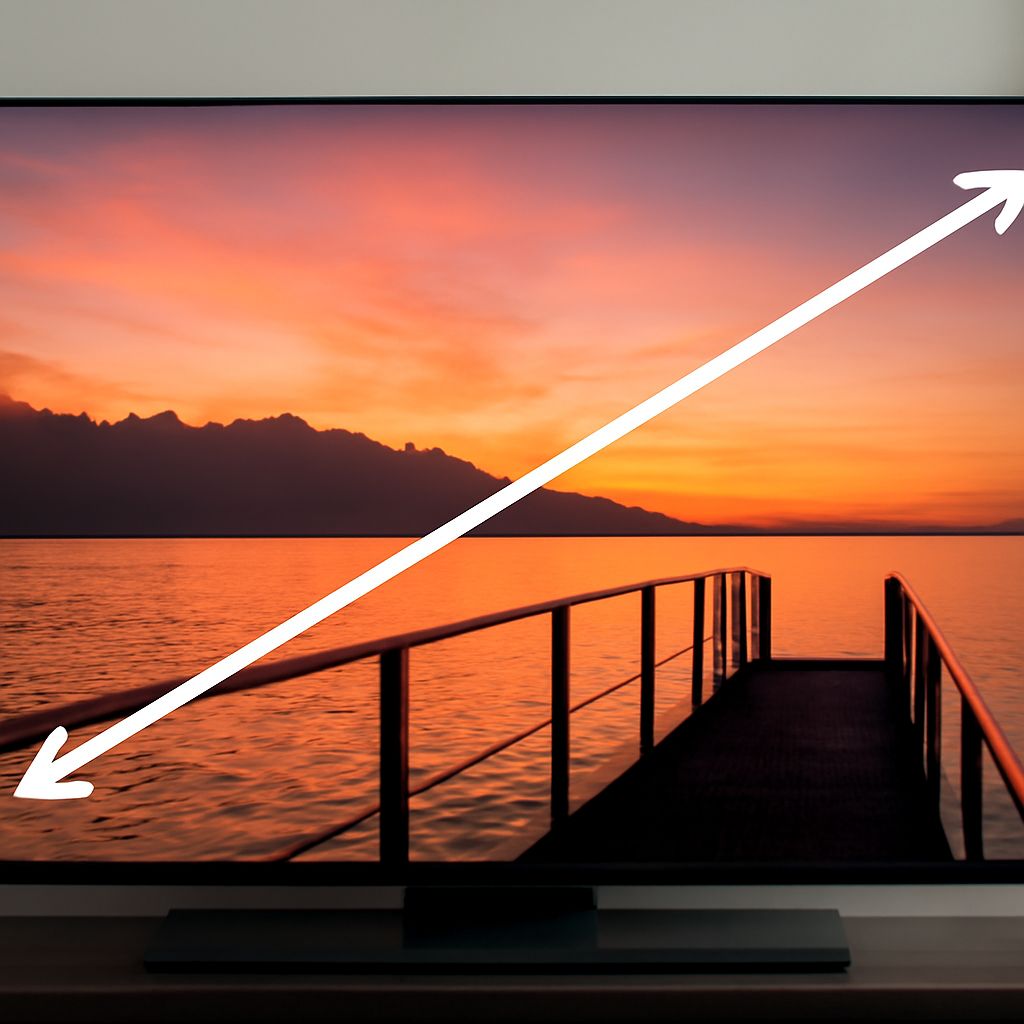
Display resolutions refer to the number of pixels shown on a screen, usually represented as width x height (e.g., 1920×1080). Higher resolutions mean more pixels, resulting in clearer and more detailed images. Common resolutions include 720p, 1080p, and 4K, each offering different levels of picture quality. Understanding these distinctions is essential for optimizing your digital TV settings and ensuring the best viewing experience.
Why Do Display Resolutions Matter in Digital TV?
Display resolutions matter because they directly impact the clarity and quality of the images on your screen. They determine how detailed the picture looks and can affect your viewing satisfaction. A higher resolution provides more detail but requires more bandwidth and a compatible screen to display it properly. For digital TV users, selecting the appropriate resolution can prevent issues such as pixelation or poor image quality.
Common Resolution Problems in Digital TV
Resolution Mismatch
A resolution mismatch occurs when the TV or the source device, such as a cable box or streaming device, is set to a resolution that is incompatible with the native resolution of the TV. This can lead to distorted images or portions of the picture being cut off. Ensuring that all devices are set to the same resolution can alleviate these problems.
Signal Interference
Signal interference can also affect display resolutions. When signals are weak or disrupted, the picture quality may degrade, appearing fuzzy or pixelated. Factors like weather conditions, outdated cables, or physical obstructions can interfere with signal transmission. Addressing these issues can improve the signal quality and resolution.
How to Troubleshoot Resolution Issues
To troubleshoot resolution issues, start by checking the settings of your TV and any connected devices to ensure they are configured to the optimal resolution. Here is a step-by-step guide:
- Verify device settings: Access the resolution settings on your TV and connected devices, such as streaming boxes or Blu-ray players, and make sure they match each other.
- Inspect cables and connections: Ensure that all cables are securely connected and are not damaged. Replace any outdated or damaged cables to improve signal transmission.
- Adjust TV settings: Some TVs have picture adjustment options that allow you to tweak the image quality. Experiment with these settings to achieve a clearer picture.
- Check signal strength: If you’re experiencing signal interference, try repositioning your TV antenna or checking for any obstructions that may be affecting the signal.
By following these steps, you can effectively troubleshoot and resolve resolution issues, enhancing your digital TV viewing experience. Understanding the importance of display resolutions and being proactive in addressing these common problems can ensure that your picture quality remains optimal, providing you with a satisfying entertainment experience.