Experiencing no sound on your TV can be frustrating, especially when you’re ready to enjoy your favorite show or movie. Whether your TV volume is not working at all or it’s unusually low, this guide will help you troubleshoot and fix the issue. Follow these steps to restore audio and enhance your viewing experience.
Why is There No Sound on My TV?
When your TV has no sound, there could be several reasons behind this problem. Understanding the root cause is the first step to fixing it. Here are some potential reasons:
- Muted Volume: It sounds simple, but often the TV volume is accidentally muted or set to the lowest level.
- Incorrect Audio Settings: Sometimes, the audio settings might be misconfigured, causing the sound to not work as intended.
- External Device Issues: Devices connected to your TV, such as soundbars or external speakers, can sometimes interfere with audio output.
- Software Glitches: Software updates or glitches could affect your TV’s sound system.
- Hardware Problems: Physical damage or internal component failure can also lead to sound issues.
Common Causes of TV Volume Not Working
Several common issues can lead to the TV volume not working properly. Identifying these can help you diagnose the problem faster:
- Remote Control Malfunction: If the remote is not functioning correctly, it may not change the volume as intended.
- Audio Output Settings: Ensure that the TV is set to output sound through the correct speaker configuration.
- Loose Connections: Check for any loose cables or connections between the TV and external audio devices.
- Sound Mode Settings: The TV might be set to a sound mode that is not appropriate for your setup, such as using surround sound settings without the equipment.
How to Fix a TV with No Sound
Once you’ve identified potential causes, you can take steps to fix the issue. Here’s how to address the problem:
- Check the Mute and Volume Settings: Use the remote to ensure that the TV is not muted and adjust the volume to a higher level.
- Inspect Cable Connections: Verify that all cables are securely connected to the correct ports, especially if using HDMI or audio cables for an external sound system.
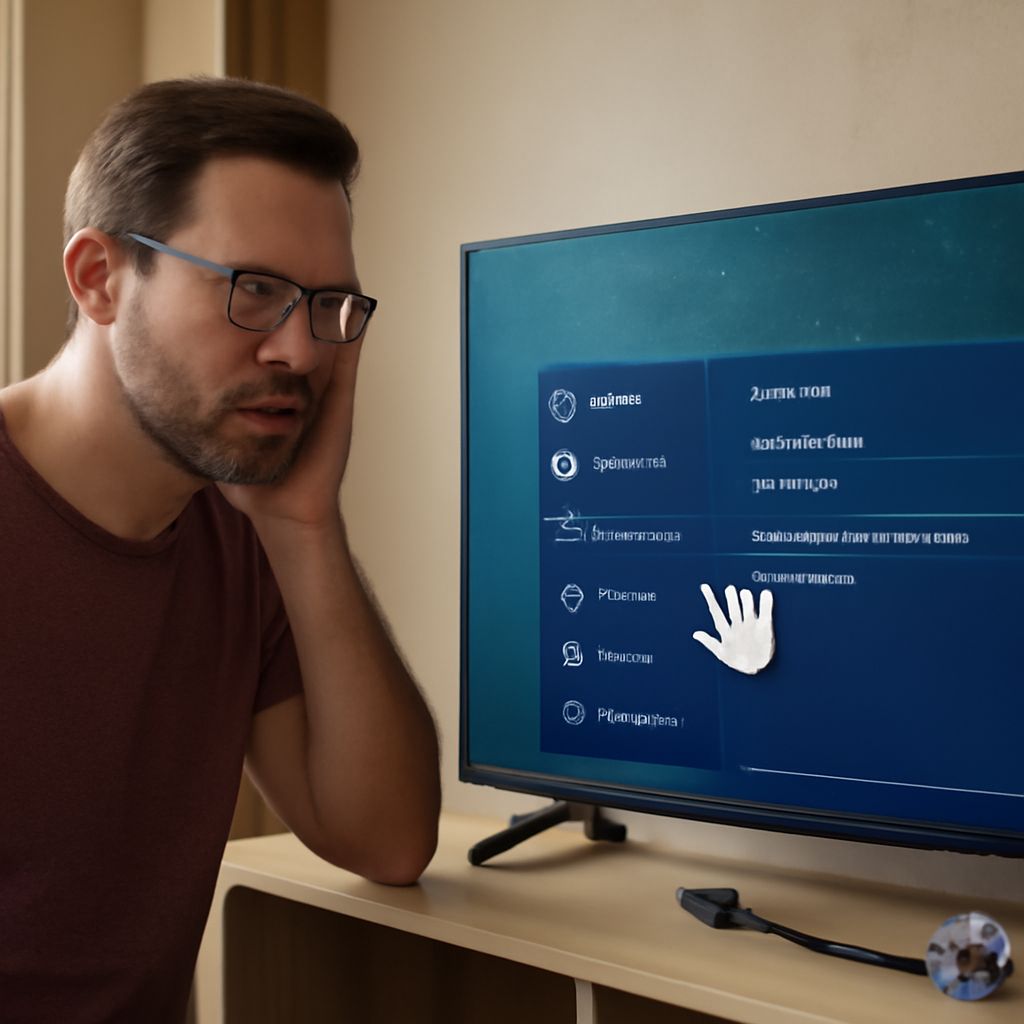
- Review the Audio Output Settings: Access your TV’s settings menu and ensure the audio output is correctly set to the TV speakers or any connected audio device.
- Reset the TV: Turn off the TV, unplug it for a minute, and then plug it back in. This can resolve temporary software glitches.
- Update TV Software: Check for any available software updates for your TV that might fix sound-related bugs.
- Test with Different Content: Play different content or switch channels to determine if the issue persists across various inputs.
- Try Using Headphones: Plug headphones into the TV’s headphone jack to see if the sound works through this output, indicating a speaker issue.
When to Seek Professional Help for TV Sound Problems
If the above solutions do not resolve the issue, it might be time to seek professional help. Here are some scenarios where professional assistance is advisable:
- Persistent Hardware Issues: If there appears to be a hardware failure, such as a blown speaker, contacting a repair technician is recommended.
- Warranty Considerations: If your TV is still under warranty, reaching out to the manufacturer or an authorized service center for repairs or replacement might be optimal.
- Complex Sound Systems: For TVs integrated into a complex home theater system, professional setup and troubleshooting may be necessary to ensure all components are correctly configured.
By following these steps and tips, you can often resolve sound issues on your TV. Whether it’s a simple fix or requires professional intervention, understanding the problem is key to restoring your audio and getting back to your entertainment.