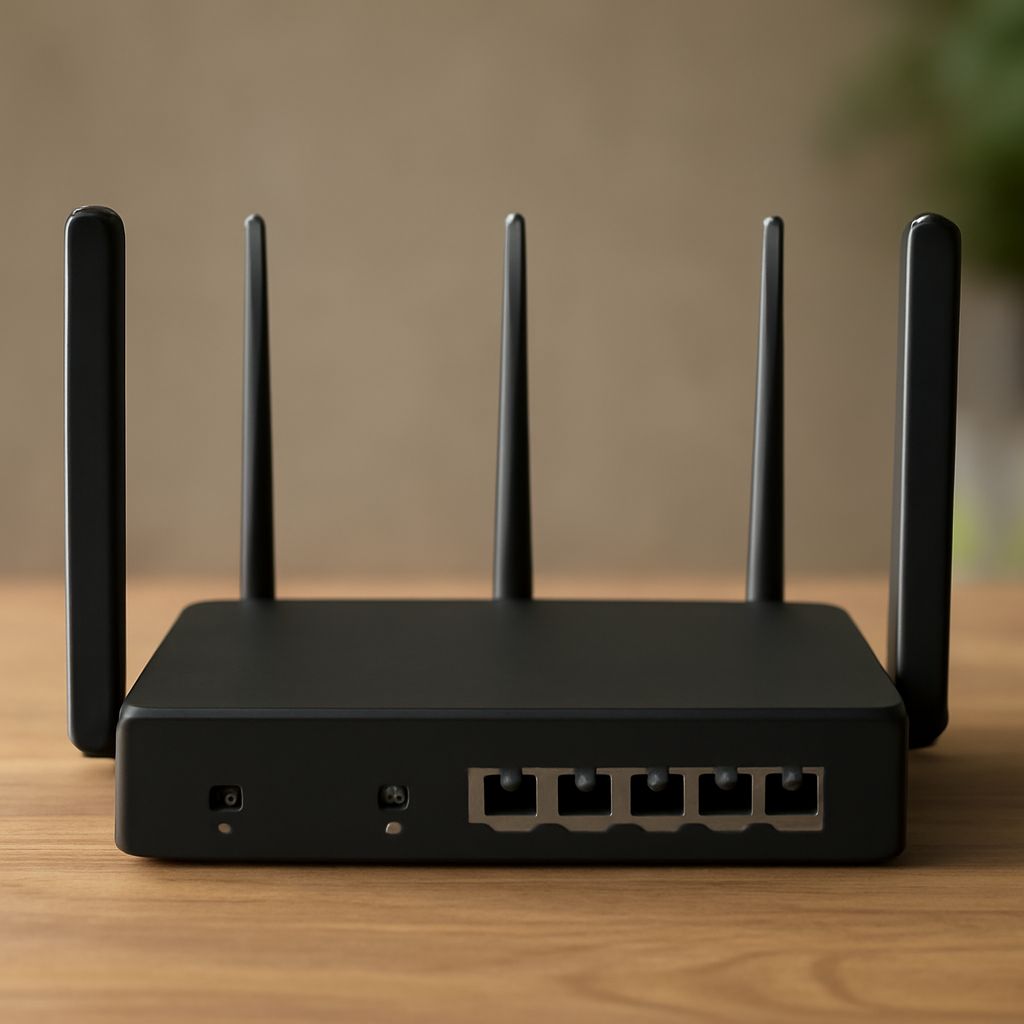
The gateway IP is the local address your device uses to reach the router’s settings. On a connected device, the quickest way to find my router IP is to read the “Default Gateway” or “Router” value, then enter that address in a browser.
Use the local address for administration. It is separate from the mobile network address, DNS servers, and APN used by a 3G Wi-Fi router to reach the internet.
What does the gateway IP mean, and how does it differ from WAN, DNS, and APN?
The gateway IP is the router’s LAN, or local-area-network, address. Common examples include 192.168.0.1 and 192.168.1.1, but the correct value depends on the router. Entering it opens the local management page even when the internet connection is offline.
- Local router or gateway IP: The address used to open settings from a connected phone, computer, or other device.
- WAN or mobile IP: The address assigned by the mobile carrier to the router’s 3G connection. It may change and is not normally used to open local settings.
- DNS: The server that converts names such as example.com into IP addresses. DNS does not identify the router’s administration page.
- APN: The carrier profile name that tells the router how to connect to the mobile data network. It is a setting, not an IP address.
How can I find my router IP on a connected device?
First connect to the router by Wi-Fi or Ethernet. Then use the method for your device:
- Windows: Open Command Prompt, run “ipconfig,” and find “Default Gateway” under the active Wi-Fi or Ethernet adapter.
- macOS: Open System Settings, choose Network, select Wi-Fi or Ethernet, and open Details followed by TCP/IP. Read the “Router” value. In Terminal, “route -n get default” also displays it.
- Android: Open Settings, Network and internet, and Internet. Select the connected network and open its details. Look for Gateway or Router; menu names vary by manufacturer.
- iPhone or iPad: Open Settings, Wi-Fi, and tap the information icon beside the connected network. The Router field shows the local address.
If no address appears, reconnect to the router, disable mobile data temporarily, and check that the device received an IP address automatically. Type the address into the browser’s address bar, including http:// if necessary. Do not search for it in a search engine.
How do I configure a 3G Wi-Fi router, APN, LAN, and Wi-Fi?
- Open and secure the interface. Connect to the router, browse to its gateway IP, and sign in with the credentials on the label or in the manual. Change the administrator password before making other changes.
- Prepare the mobile connection. Insert an active, compatible SIM card and enter its PIN if the router requests one. Open Mobile Network, 3G, or Internet settings, then create or select the carrier profile.
- Enter the APN carefully. Use the APN supplied by the carrier, including capitalization where required. Add the carrier’s username, password, authentication type, and dial number only when specified. Save the profile and select it as active. Set network selection to Automatic unless the carrier requires another mode.
- Set the LAN. Leave the router’s local IP and subnet at their defaults unless another device uses the same address range. Keep DHCP enabled so connected devices receive an IP, gateway, and DNS automatically. If you change the LAN address, reconnect and use the new address to sign in.
- Configure Wi-Fi. Set a recognizable network name, choose WPA2-Personal or WPA3 when available, and create a long Wi-Fi password. Save the settings and reconnect devices using the new network details.
How do I check LAN, Wi-Fi, and internet access?
- Reconnect a test device to the new Wi-Fi network. Confirm it received a local IP address, subnet, and gateway in the same range as the router.
- Open the gateway IP in a browser. If the settings page loads, the LAN and Wi-Fi path is working.
- Check the router’s Status or Mobile Connection page. It should show SIM readiness, network registration, signal strength, an active APN, and a mobile or WAN IP.
- Test an internet address, then open a named website. If an IP-based test works but websites do not load by name, review the DNS settings. If the router has no mobile IP, recheck the APN, SIM data service, PIN, and signal.
- After correcting a profile, save it, wait for registration, and repeat the gateway and website tests. This confirms both local access and the 3G internet connection.