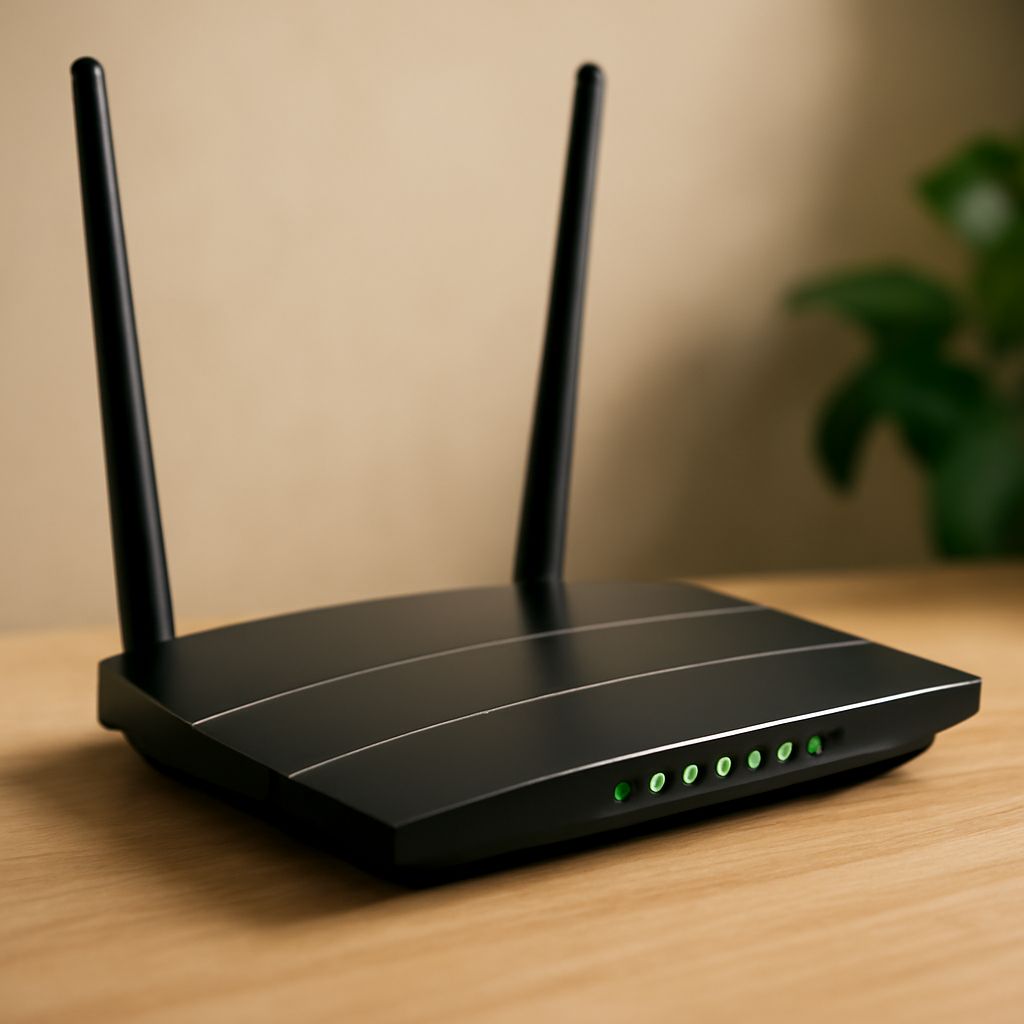
Choosing a wifi repeater vs access point starts with one rule: do not add an extender until the original router and internet connection stay stable. First determine whether the failure is on the WAN, inside the router, or only on the wireless radio.
An N600-class router can provide useful coverage when it is configured correctly, but its wireless rating does not identify an internet-speed problem. Test the existing connection, stabilize it, then choose wired or wireless backhaul based on the building and the devices you need to support.
WiFi repeater vs access point: compare wired and wireless backhaul, airtime, placement, capacity, and management
An access point is usually the better choice when you can run Ethernet to the weak-coverage area. It uses the cable as its backhaul and reserves its wireless airtime for client devices. A repeater receives and retransmits traffic over Wi-Fi, so the same radio time carries data between the router and clients. That can reduce throughput and increase latency, especially when several devices are active.
- Backhaul: An access point uses Ethernet; a repeater normally uses a wireless link. A tri-band extender may have a dedicated backhaul, but a basic N600 unit generally does not.
- Placement: Put an access point where coverage is needed. Put a repeater halfway between the router and the dead zone, where it still receives a strong, stable signal.
- Capacity: An access point normally handles more simultaneous traffic efficiently. A repeater has less usable airtime because it must listen and retransmit.
- Management: An access point can join the existing LAN with the router providing DHCP. A repeater is simpler to deploy, but roaming between units and client steering may be limited.
What does an N600 wireless dual band router actually mean?
An n600 wireless dual band router is an 802.11n device advertised with a combined theoretical rate of about 600 Mbps, commonly 300 Mbps on 2.4 GHz plus 300 Mbps on 5 GHz. N600 is an aggregate Wi-Fi class, not a 600 Mbps internet service or guaranteed client speed. Protocol overhead, signal strength, interference, channel width, device limits, and shared airtime make real throughput lower.
The two band figures are not normally added for one device. A client connects on one band at a time, and older 802.11n hardware may perform poorly when distance, interference, or mixed legacy clients are involved.
Why does your router keep dropping internet: isolate WAN, router, and Wi-Fi faults
If your router keeps dropping internet, test one wired computer while the failure is occurring. Also record the exact time, duration, affected devices, modem lights, and router uptime. Timing often shows whether the event is a lease renewal, router restart, radio failure, or outside service interruption.
- Test the gateway: From the wired computer, ping the router’s local address. If this fails, the router, LAN cable, or router power is the likely problem.
- Test beyond the router: If the gateway responds, ping a public address such as 1.1.1.1. Gateway success with public-address failure points to the modem, WAN cable, ISP, or router WAN settings.
- Check DNS separately: If public addresses respond but websites do not load, investigate DNS rather than Wi-Fi coverage.
- Compare clients: If wired devices remain online while wireless devices fail, inspect radio channels, interference, distance, and the router’s wireless logs. If every device fails simultaneously, focus on the WAN or router.
How do you stabilize, install, and test the chosen extension?
Fix the base connection before extending it. Otherwise, an extender will reproduce the outage in a second location.
- Reseat or replace the Ethernet cable between the modem or ONT and router, and verify that each device has stable power. Check whether the modem or ONT loses its link when the outage occurs.
- Update router firmware, review event logs, and check for unexpected reboot times. Improve ventilation, remove unstable power adapters, and reset and reconfigure the router only after recording the current settings.
- For radio-only failures, move the router into an open, central position. On 2.4 GHz, test a fixed 20 MHz channel of 1, 6, or 11; on 5 GHz, test a cleaner supported channel and narrower width if reliability improves.
- After wired and wireless tests remain stable for at least a full day, install an access point through Ethernet in access-point mode, with DHCP disabled if the main router supplies addresses. Match security settings and use a clean channel.
- If Ethernet is impractical, install a repeater where its router-side signal is still strong, not inside the dead zone. Test speed, latency, and reconnection at the repeater and near the main router during busy periods.
The installation is successful when wired service remains stable, the extended area has a consistent signal, clients reconnect without repeated drops, and performance is acceptable at the busiest expected time.