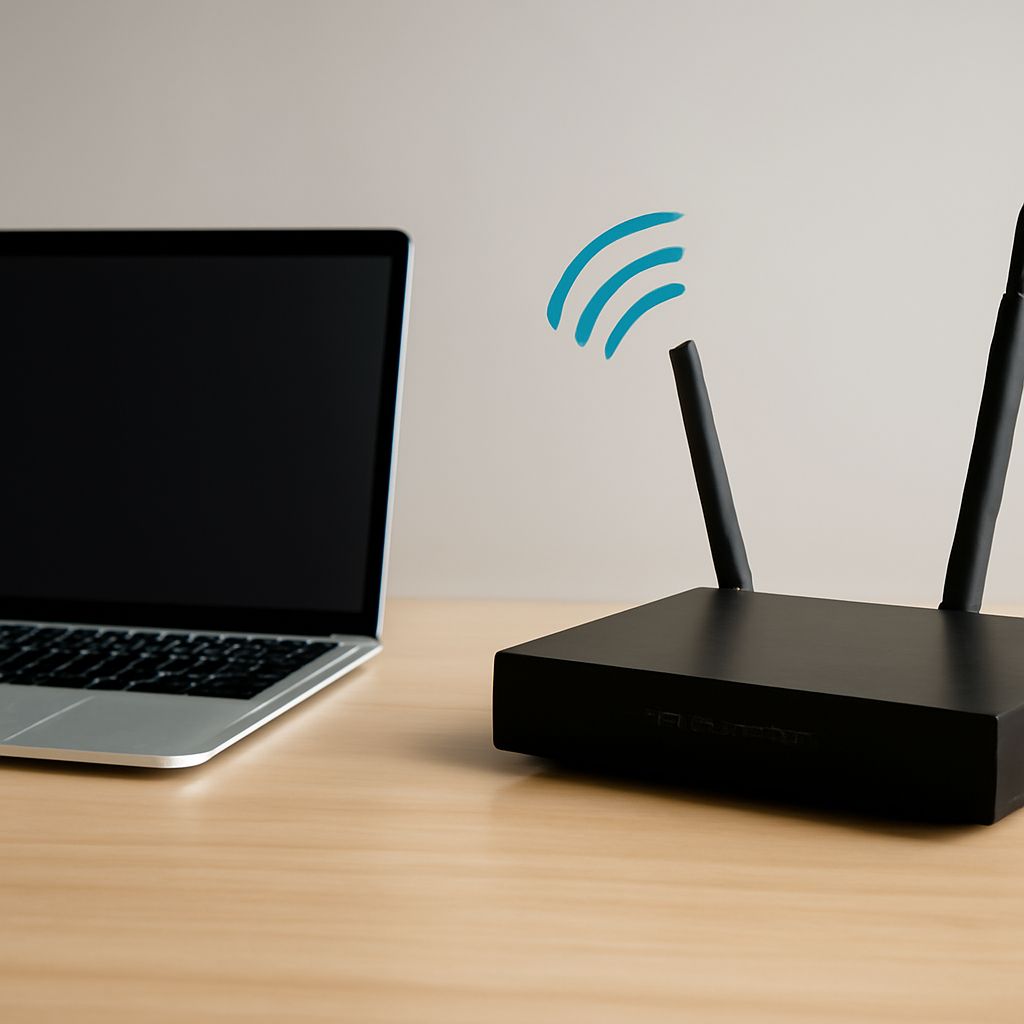
Access point mode vs router mode determines whether a device manages your network or only extends it. Choose router mode when the device connects directly to a modem or ONT and should provide NAT, DHCP, and the default gateway. Choose access point mode when another router already performs those jobs.
If a router keeps dropping the connection, first identify the correct routing device and its management address. Then test whether the failure affects Wi-Fi, the router itself, or the internet connection beyond the router.
Access Point Mode vs Router Mode: Which Device Should Route?
In router mode, the device creates a private LAN behind its WAN connection. NAT translates private device addresses to the public address supplied by the ISP. DHCP assigns each client a LAN address, such as 192.168.1.25, and tells clients which address is the default gateway. The gateway is normally the router’s LAN address, such as 192.168.1.1.
In access point mode, the device bridges Wi-Fi and Ethernet onto an existing LAN. The main router continues to provide NAT, DHCP, and the default gateway. The access point needs its own management address, but it should not run a second DHCP service. Connect it to the existing network as the manufacturer specifies, usually with a LAN connection, then select access point or bridge mode.
Use router mode for the one device at the network edge. Use access point mode for an additional unit that extends coverage. Two routing devices can create double routing, often called double NAT. Symptoms include devices on separate subnets, unreliable port forwarding, VPN or gaming problems, and local services such as printers or casting devices failing to discover one another.
How to Find the IP Address of Your Router or Access Point
Connect to the network by Wi-Fi or Ethernet, then find the connected device’s default gateway. That address is usually the router’s management address:
- Windows: open Command Prompt, run ipconfig, and read the “Default Gateway” value.
- macOS: open System Settings, select Network, choose the connection, open Details, and read the Router value under TCP/IP.
- Linux: run ip route and find the address after default via.
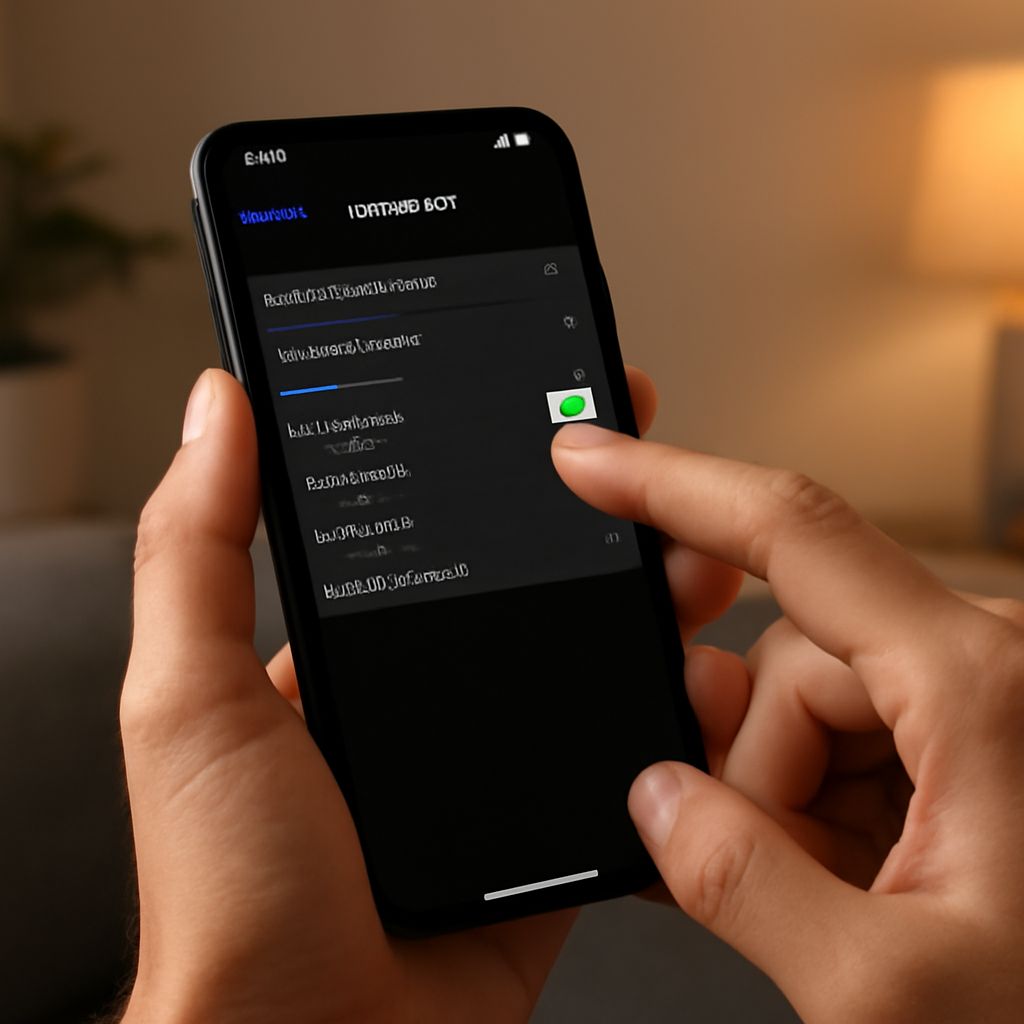
- Android or iPhone: open the current Wi-Fi network’s details and look for Router, Gateway, or similar wording.
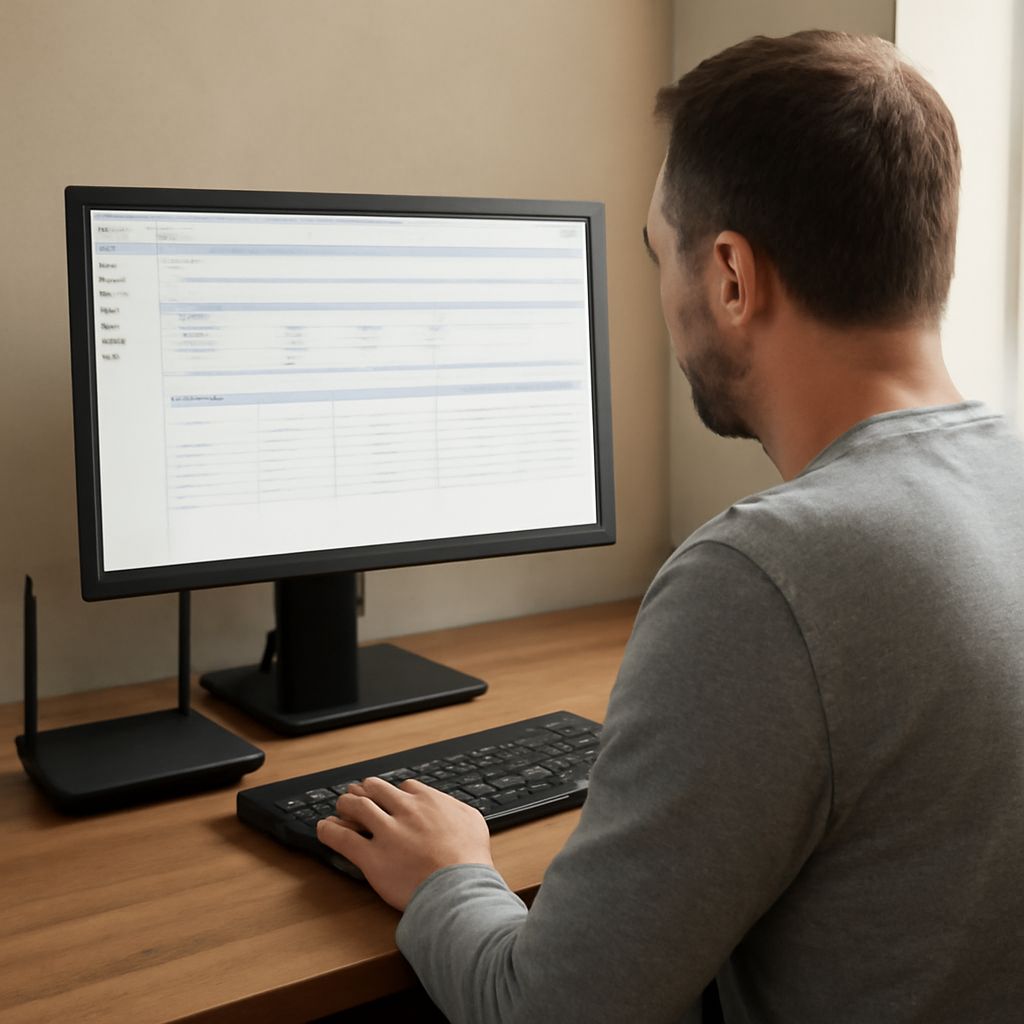
Enter that address in a browser, using http:// or https:// as required. A secondary access point may not be the default gateway. Find it in the main router’s connected-device or DHCP-client list, or in the access point’s app. A label or manual may show a factory address, but it may change after DHCP assigns a new one. Do not confuse the private management address with the router’s public WAN address.
Configure One Device for NAT, DHCP, and the Default Gateway
- Decide which device connects to the modem or ONT. Set that device to router mode.
- Leave NAT and DHCP enabled only on that main router. Confirm its LAN address and DHCP range do not conflict with the modem’s settings if the modem also routes.
- Set the second device to access point or bridge mode. If it lacks an automatic mode, give it a unique LAN address on the main router’s subnet and disable its DHCP server.
- Connect the devices as directed. For a manual access-point setup, use a LAN port on the main router and the access point’s LAN or designated uplink port; avoid using a second router’s WAN port unless its access-point mode specifically requires it.
- Reconnect a client and verify that it receives an address from the main router. Its default gateway should be the main router, not the access point.
If both devices advertise DHCP, clients can receive inconsistent gateways or duplicate settings. If both devices route, compare their LAN subnets and look for the double-NAT symptoms above.
Why Your Router Keeps Dropping the Connection: Check Wi-Fi, Restarts, and WAN
Diagnose in this order while the failure is happening:
- Test the radio: If Wi-Fi disappears but a wired client still works, the problem is wireless rather than the WAN. Check whether the device loses the network entirely or merely reports “no internet.” Test near the access point, try another band, reduce interference, and update or reposition the access point. If only one client disconnects, inspect that client’s driver and power-saving settings.
- Test for a router restart: When all wired and wireless clients lose the gateway, check the LEDs and router uptime or event log. A reboot, heat, failing power adapter, firmware fault, or overloaded configuration can interrupt the entire LAN. Improve ventilation, update firmware, inspect the power connection, and check logs before replacing hardware.
- Test the WAN: If Wi-Fi stays connected and the gateway responds, but websites fail, the outage is beyond the LAN. Check the router’s WAN status, then test a public IP such as 1.1.1.1 and a domain name. A working IP test with failed domain names indicates DNS trouble; both failing points to the modem, ONT, cable, or ISP link. Check those connections and the modem’s status or event log.