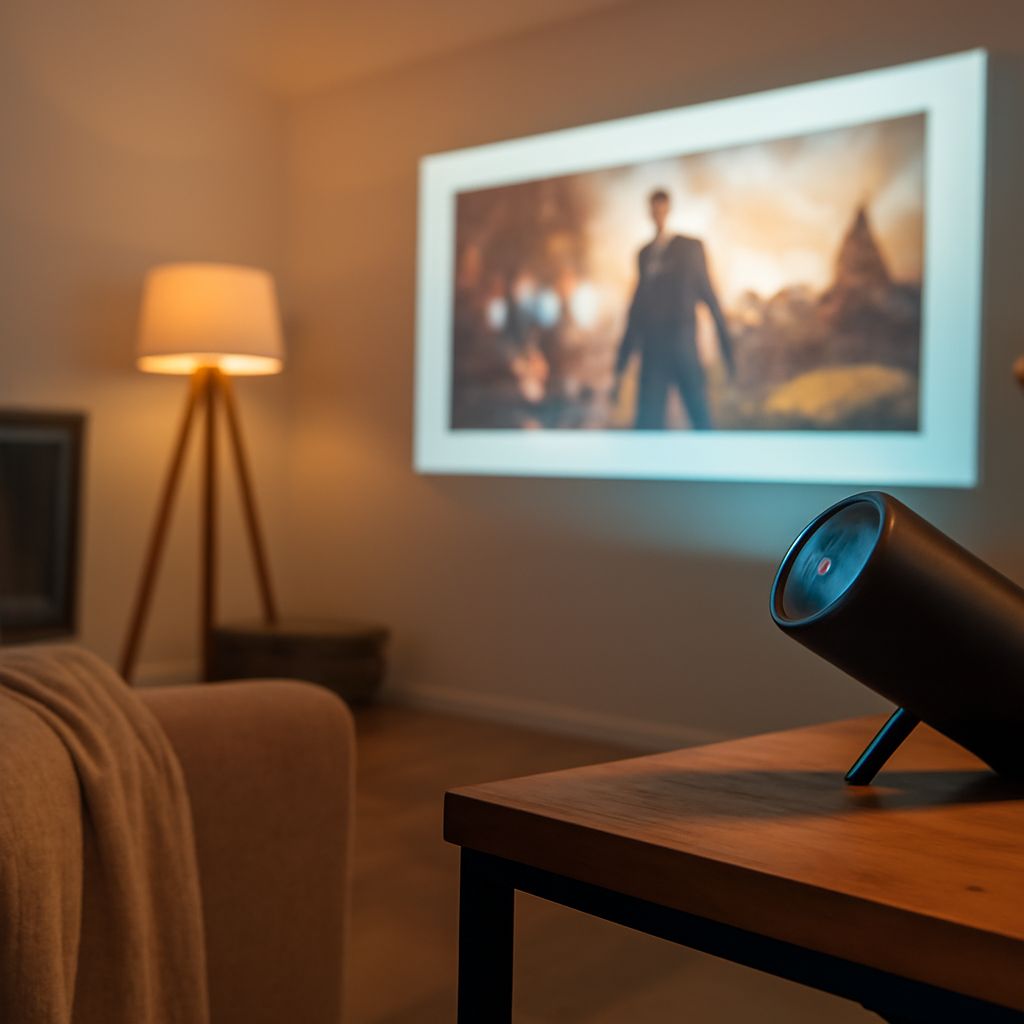
Setting up a projector can transform your living room into a mini home theater or enhance your conference presentations. To achieve the best results, following a structured approach is essential. This guide will walk you through the process of how to set up a projector, covering the necessary equipment, choosing the right location, connecting devices, and adjusting the screen for optimal picture quality.
What Equipment Do You Need for Projector Setup?
Before you begin your projector setup, gather the following equipment:
- Projector: Choose a projector that suits your needs, such as a home theater projector with high resolution for movie nights or a portable one for presentations.
- Projection Screen: A dedicated screen is ideal, but a white wall can serve as an alternative.
- Cables: HDMI or VGA cables are commonly used for video, while audio cables may be required if your projector doesn’t have built-in speakers.
- Mount or Stand: Depending on your setup, a ceiling mount or a stand can help position the projector at the right height.
- Power Supply: Ensure you have the necessary power cables and an available outlet nearby.
How to Choose the Right Location for Your Projector
Choosing the right location for your projector is crucial for a clear and immersive viewing experience. Consider the following factors:
- Distance: The distance between the projector and the screen or wall should be within the projector’s throw distance specifications. This information is typically found in the projector’s manual.
- Height: Ensure the projector is either level with the bottom of the screen or angled correctly using its keystone adjustment to align with the top of the screen.
- Ambient Light: Minimize ambient light by positioning the projector in a darker area or using blackout curtains to enhance image clarity and contrast.
How to Connect Your Projector to Various Devices
Connecting your projector to different devices is a critical step in projector setup. Here’s how you can connect to various devices:
- Computer or Laptop: Use an HDMI or VGA cable to connect your computer to the projector. Ensure that the computer’s display settings are configured to recognize the projector as an external display.
- Streaming Device: Connect devices like Roku, Amazon Fire Stick, or Chromecast via an HDMI port. Make sure they are powered and connected to the same Wi-Fi network as your control device.
- Gaming Console: Connect your console using an HDMI cable for both video and audio output. Check the console’s settings for optimal resolution and refresh rate.
How to Adjust the Projector Screen for Best Picture Quality
After connecting your devices, fine-tuning the projector screen is essential to achieve the best picture quality:
- Focus: Use the focus ring or control on the projector to sharpen the image until it appears clear and crisp.
- Keystone Correction: Adjust the keystone settings to eliminate any distortion, ensuring that the image is rectangular and properly aligned with the screen edges.
- Zoom: Use the zoom feature to resize the image to fit the screen without losing quality.
- Color and Brightness: Adjust the projector’s color settings, brightness, and contrast to suit your viewing environment. Some projectors offer preset modes like ‘Cinema’ or ‘Presentation’ that can be useful.
By following these steps, you can ensure a successful projector setup that offers optimal picture quality and a seamless viewing experience. Whether for home entertainment or professional presentations, a well-set-up projector can make all the difference.