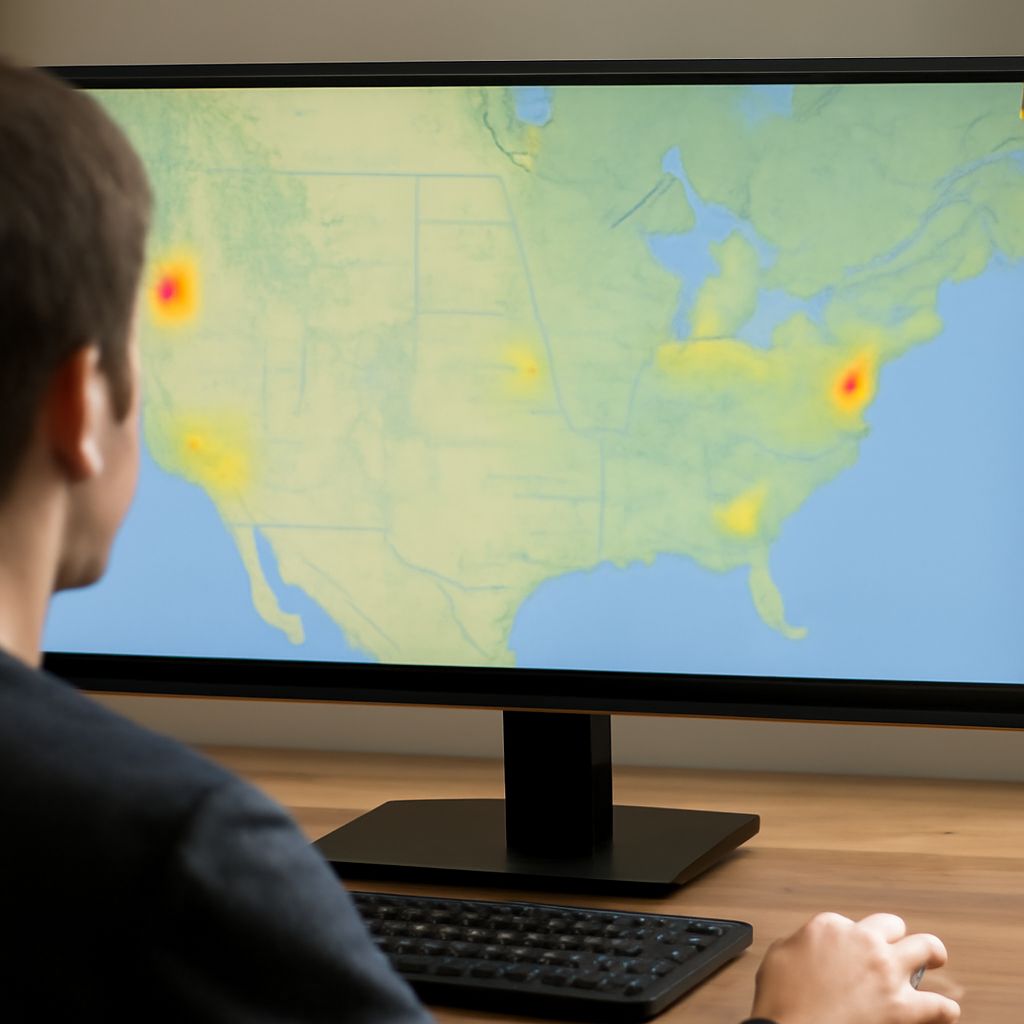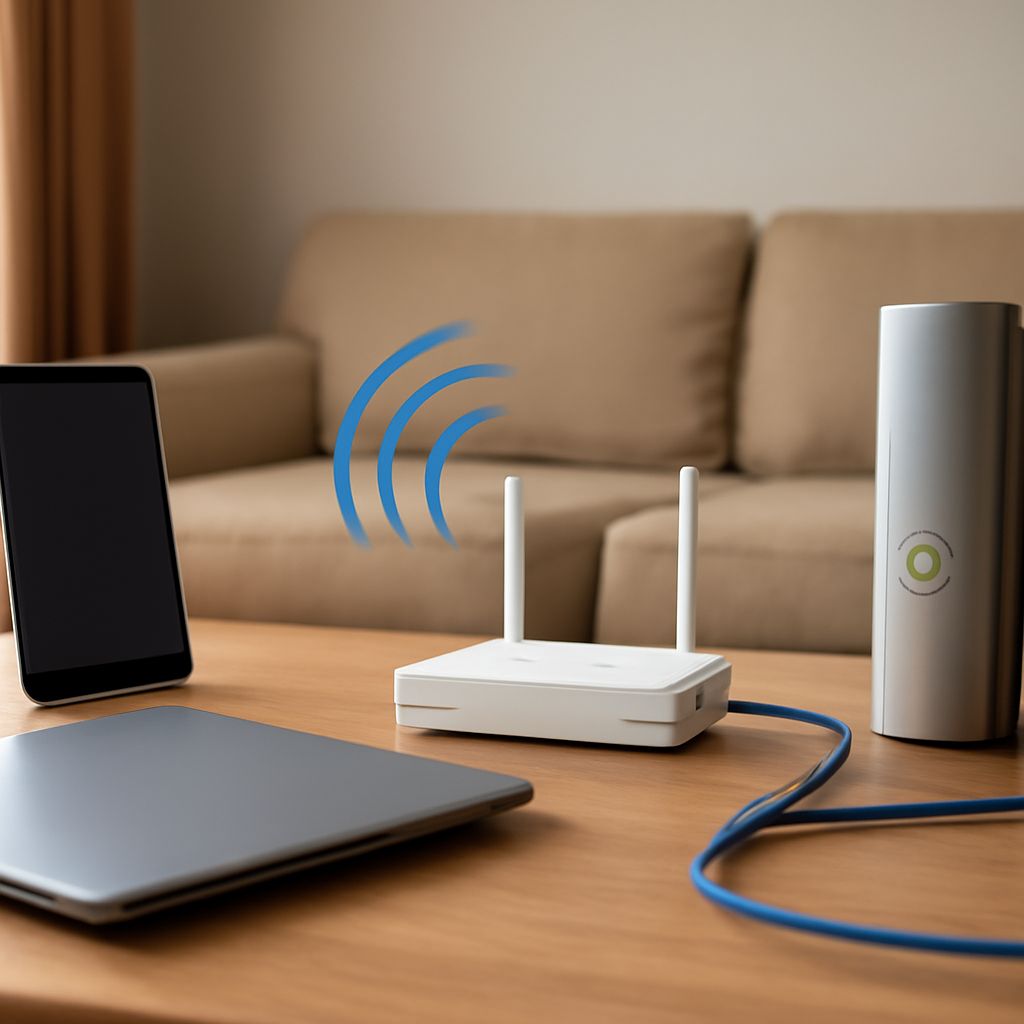
WAN is the router’s connection to the internet service coming from your provider. It normally connects to a separate modem or fiber ONT, while the router’s LAN ports and Wi-Fi serve devices inside your home. A red internet indicator usually means that this upstream connection is unavailable, but it does not prove that the router has failed.
Before replacing hardware, identify which device shows the warning, check for an outage, and trace the connection from the provider’s equipment to the router’s WAN port. A typical home Wi-Fi router remains useful for about four to seven years, although heat, power problems, unsupported firmware, or a failing adapter can shorten that period.
What Is WAN on a Router, and Does It Connect to a Modem or ONT?
If you are asking what is WAN on a router, WAN means Wide Area Network. The WAN port, often labeled Internet, accepts the Ethernet cable from your modem or ONT. It is different from the router’s LAN ports, which connect computers, televisions, switches, and other devices on your home network.
A cable or DSL modem converts the provider’s line into an Ethernet connection. A fiber ONT performs a similar handoff for a fiber service. The usual path is:
- Coaxial, telephone, or fiber line from the provider to the modem or ONT
- Ethernet cable from the modem or ONT to the router’s WAN or Internet port
- Ethernet or Wi-Fi connection from the router to your devices
Some providers supply a gateway that combines a modem or ONT and router in one enclosure. In that case, you may not see a separate WAN cable or WAN light. Check the model’s label and manual before interpreting an indicator. A light marked Online or LOS on an ONT describes the provider-side fiber link, while an Internet or WAN light on a router describes the router’s own upstream connection.
What Does a Red Light on a Modem Mean?
A red light on a modem commonly means the device cannot establish or maintain service with the provider. Depending on the model, the light may indicate failed cable or DSL synchronization, an unsuccessful fiber connection, failed registration, or a general internet fault. On an ONT, a red LOS light often means loss of the optical signal, which usually requires provider-side attention.
Do not treat every red indicator the same way. A red power light can suggest a hardware or power-adapter problem, while a red online light may point to an outage or failed authentication. Find the model’s LED guide and note whether the light is solid, flashing, or changing during startup.
Check the provider’s outage page or support line first, especially if the modem or ONT’s service light is red. Confirm that its power cable is firmly connected, then restart the equipment only if the provider recommends it. For a separate modem and router, power down both, start the modem or ONT first, wait until its service or online status stabilizes, and then start the router. Avoid factory-resetting provider equipment unless support instructs you to do so.
What Does a Red Internet Light on a Router Mean, and What Should You Check?
A red internet light on a router usually means the router is not receiving a usable connection from the modem or ONT. The exact meaning depends on the brand and model: some routers use red for no WAN link, while others use it for no assigned address, failed login, or a detected service interruption. Use the manual and run these checks in order.
- Separate an outage from a local fault. Check whether the modem or ONT shows a normal online state. Test another device if possible, and use cellular service to check the provider’s outage information. If the provider equipment cannot synchronize or register, the router is unlikely to be the first cause.
- Check the WAN cable and ports. Reseat the Ethernet cable at both ends. Make sure it runs from the modem or ONT to the router’s port labeled WAN or Internet, not to a numbered LAN port. Try a known-good cable. A dark link light, when the model provides one, suggests a cable, port, or upstream-device problem; a red status light with an active link requires the next checks.
- Check address assignment. Open the router’s administration page and inspect its WAN status. Most services use DHCP, so the router should receive a WAN address, gateway, and DNS information. An address of 0.0.0.0 or a blank lease indicates that the router is not receiving configuration. Renew the DHCP lease and restart the modem or ONT before changing other settings.
- Check authentication and provider settings. DSL and some fiber services require PPPoE credentials. Other connections may require a VLAN ID, a specific connection type, or registration of the router’s MAC address. Compare the WAN settings with the provider’s instructions. Do not guess values, because an incorrect login or VLAN setting can produce the same warning as a failed connection.
- Check configuration, firmware, and power. Confirm that the router is not in access-point mode when it should be routing, and verify that its firmware is current and supported. Back up settings before a reset. If the router repeatedly loses its configuration, reboots, becomes unusually hot, or goes offline when several devices connect, test its supplied power adapter and ventilation as well as its software.
If a computer connects directly to the modem or ONT and also has no service, contact the provider or investigate the line. If direct service works, the cable is good, the router receives no WAN address, and the provider settings are correct, the router or its power supply becomes a more credible suspect. A DNS problem can also prevent websites from loading even when the WAN link is active, so a red light is not the only connection test.
How Long Does a Wi-Fi Router Last, and When Is Replacement Sensible?
How long does a Wi-Fi router last? Plan on roughly four to seven years for normal home use, with variation based on heat, workload, firmware support, and power quality. A router can remain functional longer, but its wireless standard, security features, coverage, and available capacity may become limiting before it stops working.
Normal product aging is different from a provider fault. Replacement is more sensible when several of these signs persist after the WAN checks above:
- Frequent drops or spontaneous reboots affect multiple devices, not just one client.
- The router overheats, smells unusual, or becomes unstable in a well-ventilated location.
- Its power adapter is failing, the WAN port loses link with known-good equipment, or ports disconnect intermittently.
- The manufacturer no longer supplies security or firmware updates.
- Performance and coverage no longer meet your service speed or household needs.
Replace the router only after the modem or ONT has normal service, the WAN cable and address assignment have been checked, and provider authentication settings are correct. If the modem or ONT remains red, the line, outage, or provider equipment—not the router’s age—should be investigated first.