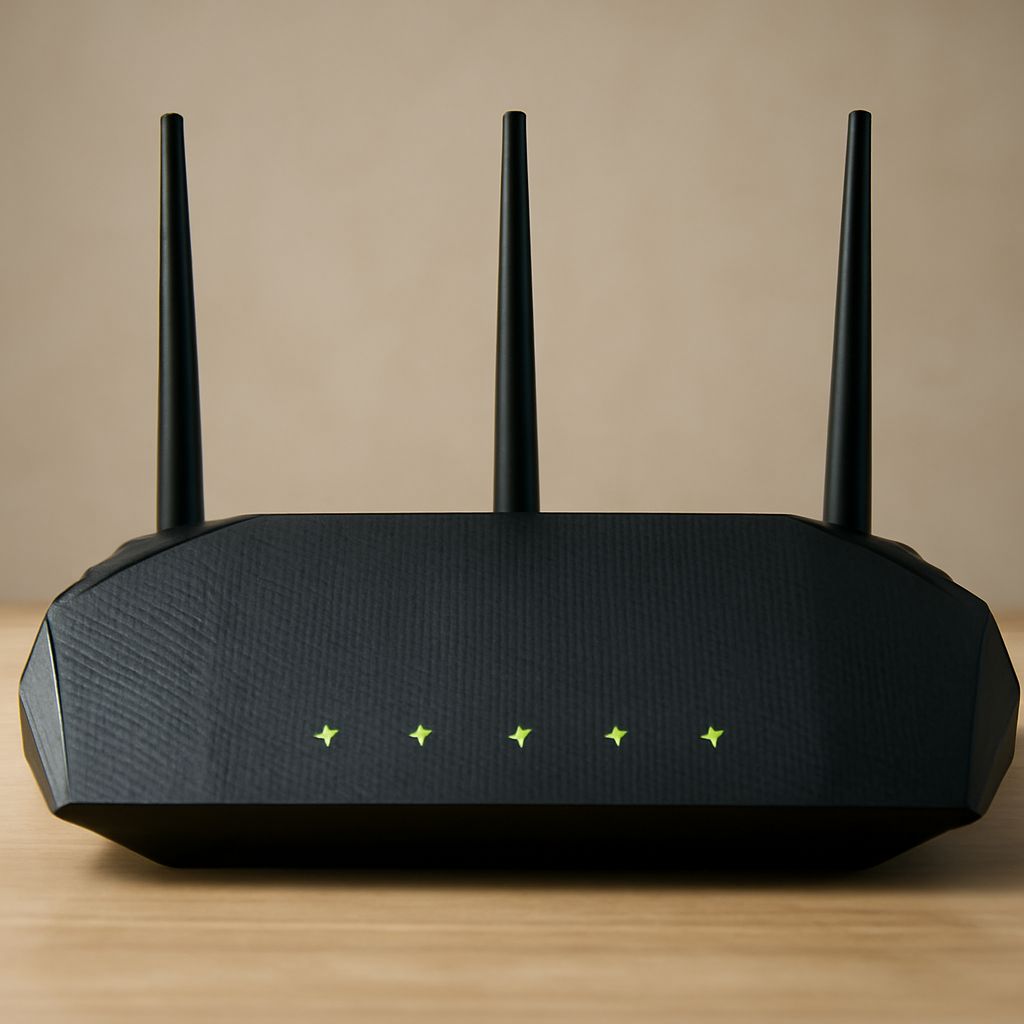
Router lights blinking? Check the light’s label and the router’s local status page together. Blinking Wi-Fi or Ethernet lights usually indicate traffic, while a missing WAN link or WAN address can stop internet access. Connect to the router, find the router’s home IP address, sign in, and inspect the WAN status before changing settings.
The light pattern narrows the fault: power lights reveal boot or restart problems, WAN lights reveal the modem or ISP connection, and Wi-Fi or Ethernet lights mainly show local activity.
What Does an AC1750 Wireless Dual-Band Gigabit Router Actually Mean?
AC1750 wireless dual-band gigabit router describes a performance class, not one specific device or interface. “AC” refers to 802.11ac Wi-Fi, while “dual-band” means the router can use both 2.4 GHz and 5 GHz networks. The 1750 rating is a combined theoretical maximum, commonly about 450 Mbps on 2.4 GHz plus 1,300 Mbps on 5 GHz.
That total is shared across bands and devices, and real speeds are lower because of distance, interference, client limits, and network overhead. “Gigabit” normally refers to wired Ethernet ports capable of up to 1 Gbps. The buttons, light colors, login page, and local IP address still depend on the manufacturer and model. AC1750 does not guarantee one universal light layout or management screen.
How Do You Find Your Router’s Home IP Address?
The router’s home IP address is usually the device’s default gateway. Use a device already connected to that router, preferably by Ethernet during troubleshooting.
How do you check the gateway on a connected device?
- Windows: Open Command Prompt, run ipconfig, and read the “Default Gateway” beside the active Wi-Fi or Ethernet adapter.
- macOS: Open System Settings, select Network, choose the connected service, and view its TCP/IP details. The “Router” entry is the gateway.
- Linux: Run ip route and find the address after default via.
- Phone or tablet: Open the connected Wi-Fi network’s details. Look for “Router,” “Gateway,” or similar wording.
What other local addresses or tools can you try?
Common management addresses include 192.168.0.1, 192.168.1.1, and 10.0.0.1, but do not guess indefinitely. Check the label, quick-start guide, manufacturer app, or model support page. Enter the gateway in a browser address bar, not a search box. If the page does not load, confirm that the device is connected to the router rather than a guest network, VPN, or another access point.
Why Are Router Lights Blinking, and What Does Each Light Mean?
Read the label first. A globe, “Internet,” or “WAN” light is different from a Wi-Fi symbol, and some routers combine several functions into one indicator. Colors and states vary, so the manual for the exact model takes priority.
How do you separate normal traffic from a fault?
- Power: Solid usually means the router is running. A light that flashes during startup may be normal; continuous cycling, with the unit repeatedly going dark and restarting, suggests a restart loop. No light points to the outlet, adapter, or hardware.
- WAN or Internet: Solid often means the physical link is active, while blinking can show internet traffic. Off, amber, or red may indicate a disconnected modem or ONT, a failed link, or no upstream service, depending on the model.
- Wi-Fi: Solid commonly means the radio is enabled. Blinking usually shows wireless traffic, not a fault. Off may mean Wi-Fi was disabled or scheduled off.
- Ethernet: A solid port light generally means a device has linked; blinking indicates data transfer. Off usually means there is no cable, the connected device is off, or the port is disabled.
Why do labels and colors vary by model?
One router may use green for a healthy WAN link and another may use white. Some show separate 2.4 GHz and 5 GHz lights; others use one Wi-Fi light. A blinking light can therefore mean activity, pairing, startup, or an error code. Compare the exact label and documented pattern before treating any color as a failure.
How Do You Check WAN Status in the Router Interface?
After opening the local management page, look for Internet, Network Map, WAN, or Status. Find the WAN or Internet IP address, connection type, default gateway, DNS servers, and link state. Do not confuse this WAN address with the router’s home IP address: the former is assigned toward the modem or ISP, while the latter is used to manage the router locally.
How do you tell a missing WAN address from an ISP problem?
A blank address, 0.0.0.0, or a disconnected status means the router has not received an upstream address. Reseat the cable between the router’s WAN port and the modem or ONT, then check the modem or ONT lights. If required, restart the modem or ONT first, wait for its service lights to settle, and restart the router second.
If the router has a valid WAN address but websites still fail, test DNS and upstream reachability. Try another device, open a known IP address if appropriate, and check whether the modem reports service. The fault may involve DNS, account authentication, an ISP outage, or the router’s configuration rather than Wi-Fi.
Which Test Matches Each Blinking-Light Pattern?
What is the correct order for the connection checks?
- Power is off: Test the outlet, use the original power adapter, and check its connection. Avoid a factory reset until power is stable.
- Power keeps flashing or restarting: Wait if a firmware update is clearly in progress. Otherwise disconnect nonessential cables, observe whether the reboot cycle continues, and consult the model’s recovery instructions.
- Wi-Fi blinks but WAN is healthy: Treat the blinking as normal traffic. Test more than one device, move closer to the router, and confirm that the device received a local IP address.
- Ethernet is dark: Replace or reseat the cable, try another router port, and check the connected device’s network adapter.
- WAN is dark, red, or amber: Check the WAN cable and modem or ONT, then review the interface for a missing WAN address.
- WAN is linked but there is no internet: Recheck DNS and gateway details, test multiple devices, and contact the ISP if the router has a valid WAN address but cannot reach upstream services.