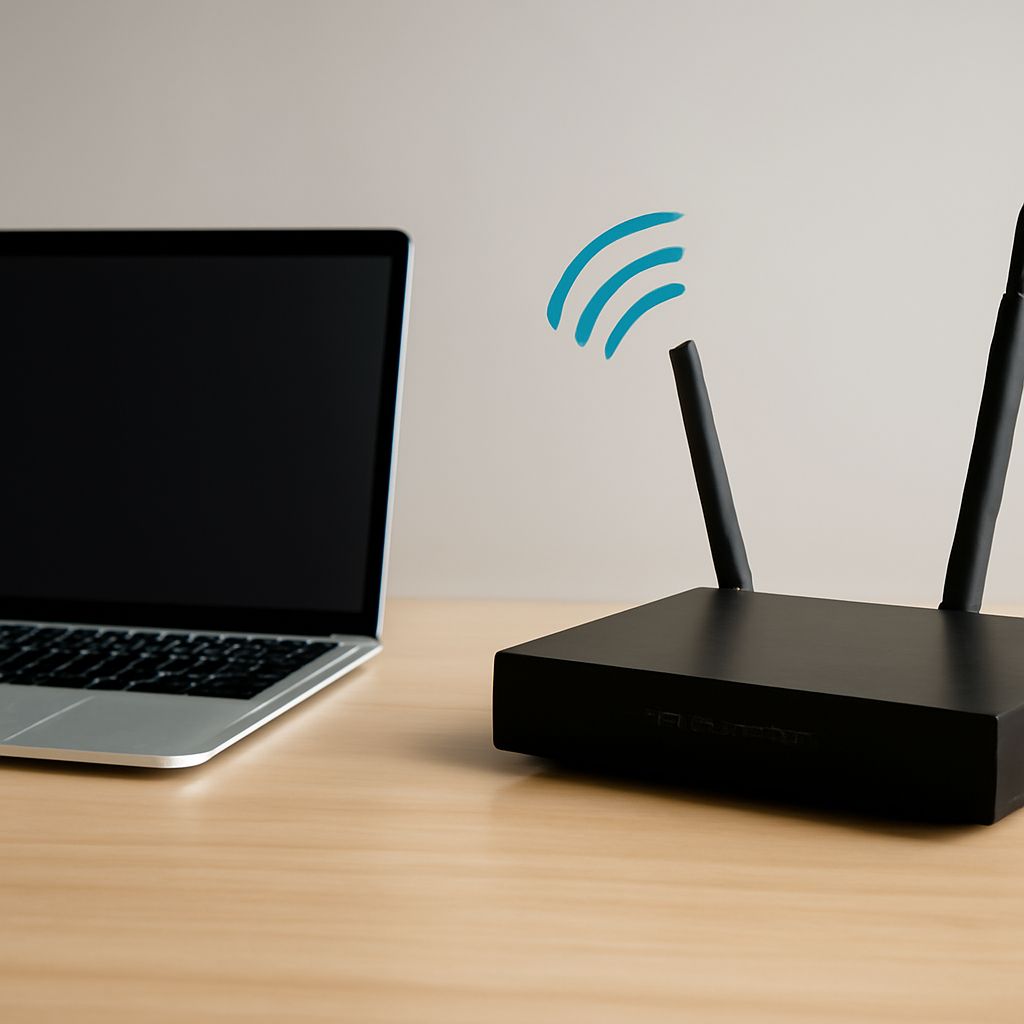
To access an AC1750 Wi-Fi router, find its management address, called the router IP, default gateway, or Router field, and enter it in a browser while connected to that network. The address is local and is not universal across AC1750 devices.
When a connection fails, timing matters more than immediately changing channels. Compare a wired device with a wireless one, and note whether the gateway, the router itself, or only the internet disappears.
What does an AC1750 Wi-Fi router actually mean?
AC1750 describes a wireless performance class, not a specific product or guaranteed speed. “AC” refers to 802.11ac Wi-Fi, while “1750” is the approximate combined theoretical rate of both bands. A typical design advertises up to 450 Mbps on 2.4 GHz and 1,300 Mbps on 5 GHz.
Those figures are shared, theoretical link rates. Actual throughput depends on distance, interference, client hardware, channel width, network traffic, and the speed of your internet service. Two AC1750 models can also use different firmware, login addresses, and management interfaces. Do not assume that every AC1750 router uses the same IP or password.
How do you find your router IP address from a device, label, or app?
Use a device already connected to the router, preferably by Ethernet. The address you need is usually identified as Default Gateway, Router, or Gateway.
- Windows: Open Command Prompt, run ipconfig, and read the IPv4 Default Gateway under the active adapter.
- macOS: Open System Settings, select Network, choose the connected service, and view Details, TCP/IP. The Router value is the management address.
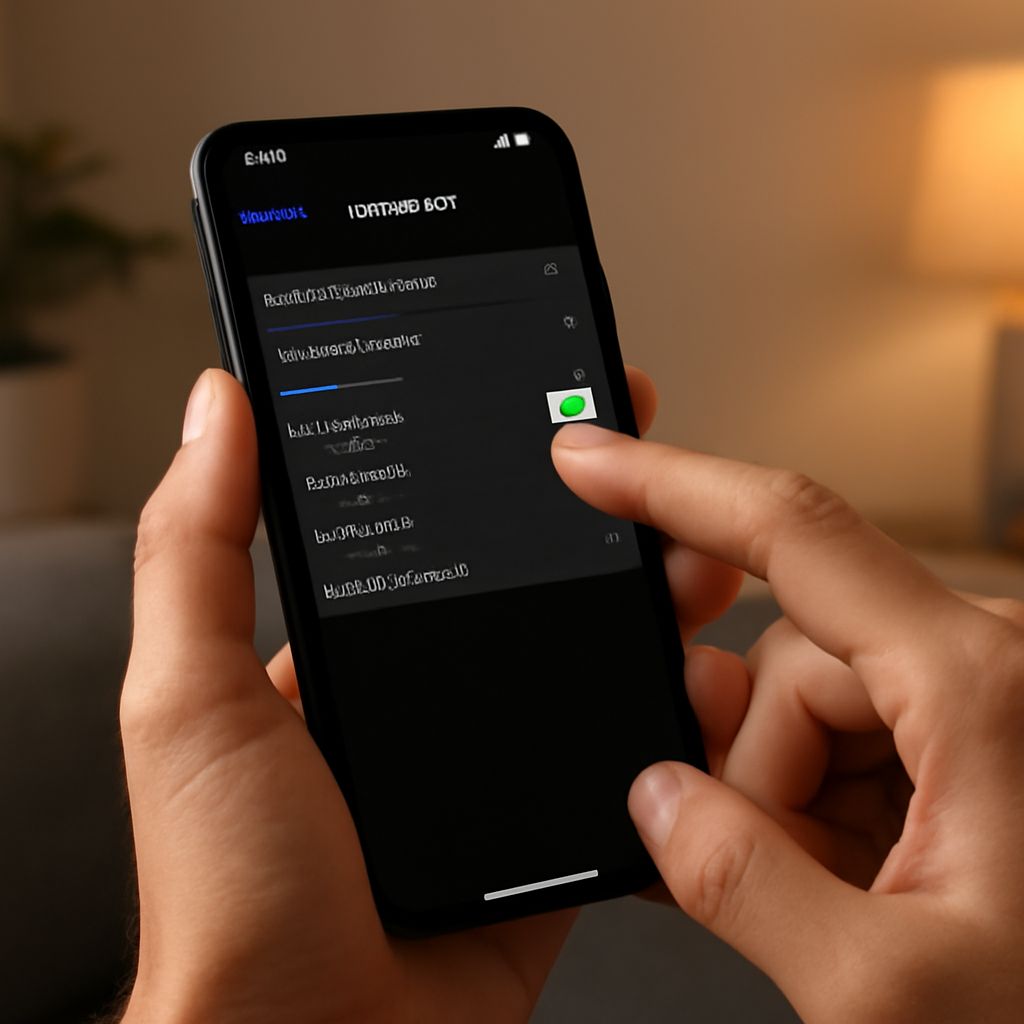
- Android or iPhone: Open the details for the connected Wi-Fi network. Look for Gateway or Router. Menu names vary by operating-system version.
- Linux: Run ip route in a terminal. The address after “default via” is the gateway.
- Label or app: Check the router’s underside, quick-start guide, or the manufacturer’s mobile app. The app may discover the address without requiring you to know it first.
Enter the result directly in the browser address bar, such as http://192.168.1.1, rather than in a search box. If the page does not open, confirm that you are on the router’s network, temporarily disable cellular data or a VPN, and try the other local address shown by the device. Use the administrator credentials printed on the label or supplied during setup; there is no universal AC1750 login.
When your router keeps dropping devices, what is actually failing?
First record the exact time of each failure and what remains reachable. This separates four different problems:
- One client disconnects: If other devices remain online, suspect that device’s Wi-Fi driver, adapter, sleep setting, DHCP lease, or signal position.
- All wireless devices lose access, but Ethernet works: The Wi-Fi radio, wireless configuration, interference environment, or router firmware is the likely failing layer.
- Wired and wireless devices lose the gateway: Check for a router restart, power interruption, overheating, or a failing router. The SSID may vanish, Ethernet links may drop, and indicator lights may cycle. After reconnecting, check the router’s uptime and event log.
- Devices can still reach the gateway but not the internet: The LAN is functioning, so investigate the WAN link between router and modem, the modem or ONT, cabling, DNS, or the provider.
During the next incident, ping the gateway from a wired computer and a wireless computer. If gateway pings fail on both, the router or its power is implicated. If gateway pings succeed but a public address such as 1.1.1.1 fails, the internet-facing connection is the stronger suspect. A single-device failure points away from the router.
How do you separate Wi-Fi, router, and WAN fixes?
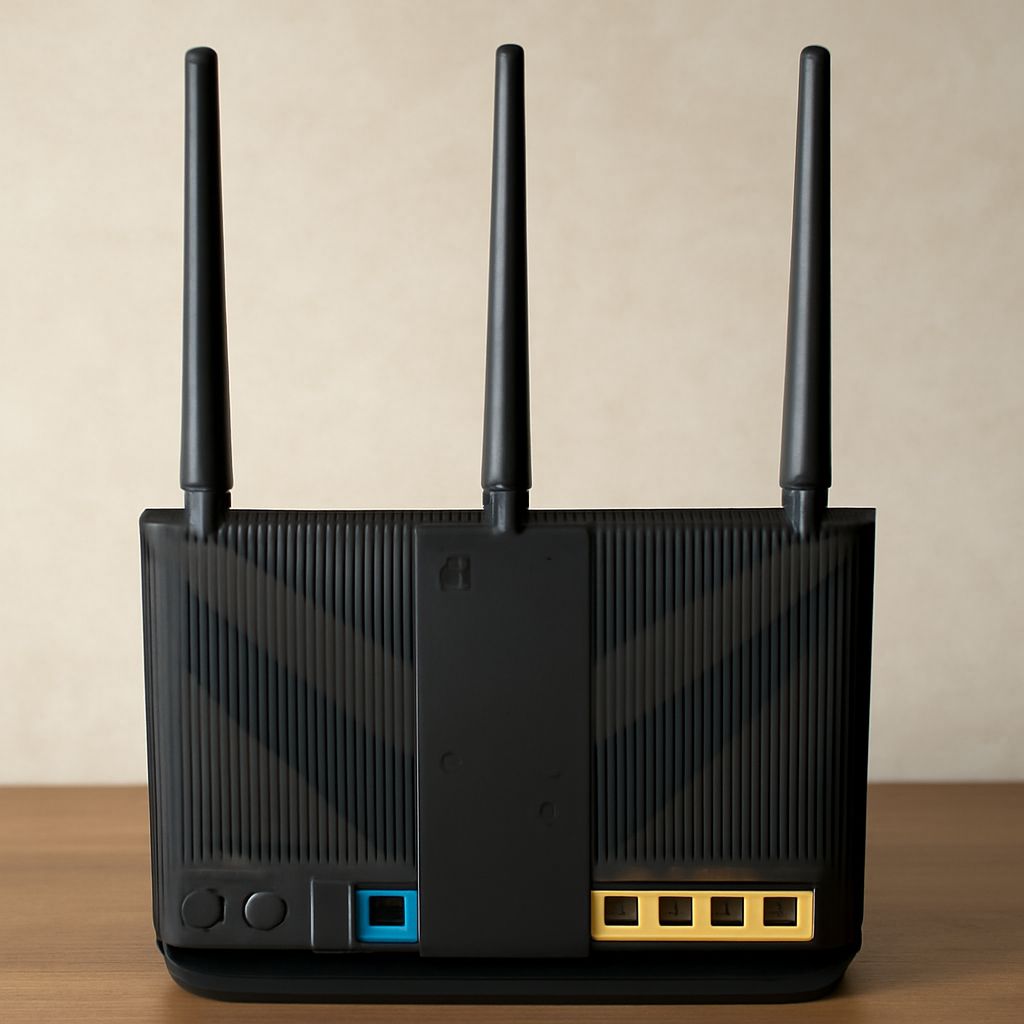
- Test the physical setup: Ensure the router has open ventilation and is not unusually hot. Reseat its power connector, use the supplied power adapter, and test a reliable wall outlet. Replace the Ethernet cable between the router’s WAN port and the modem or ONT.
- Check software: Install stable firmware from the manufacturer for the exact model and hardware revision. Review restart or error logs. Back up settings before a factory reset; reset only when configuration corruption is plausible.
- Fix a confirmed wireless problem: Move the router into an open, central position. Scan for congestion, use a less crowded channel, and avoid excessive channel width. On 2.4 GHz, manually testing channels 1, 6, and 11 can help; on 5 GHz, try a non-DFS channel if devices repeatedly disappear.
- Fix a confirmed WAN problem: Check modem or ONT status lights, replace the WAN cable, and restart the modem and router in the provider’s recommended order. Check the provider’s outage status and contact support if the modem loses its service signal or the WAN drops while the gateway remains reachable.
Change radio settings only after the wired-versus-wireless and gateway-versus-internet tests identify Wi-Fi as the failing layer.