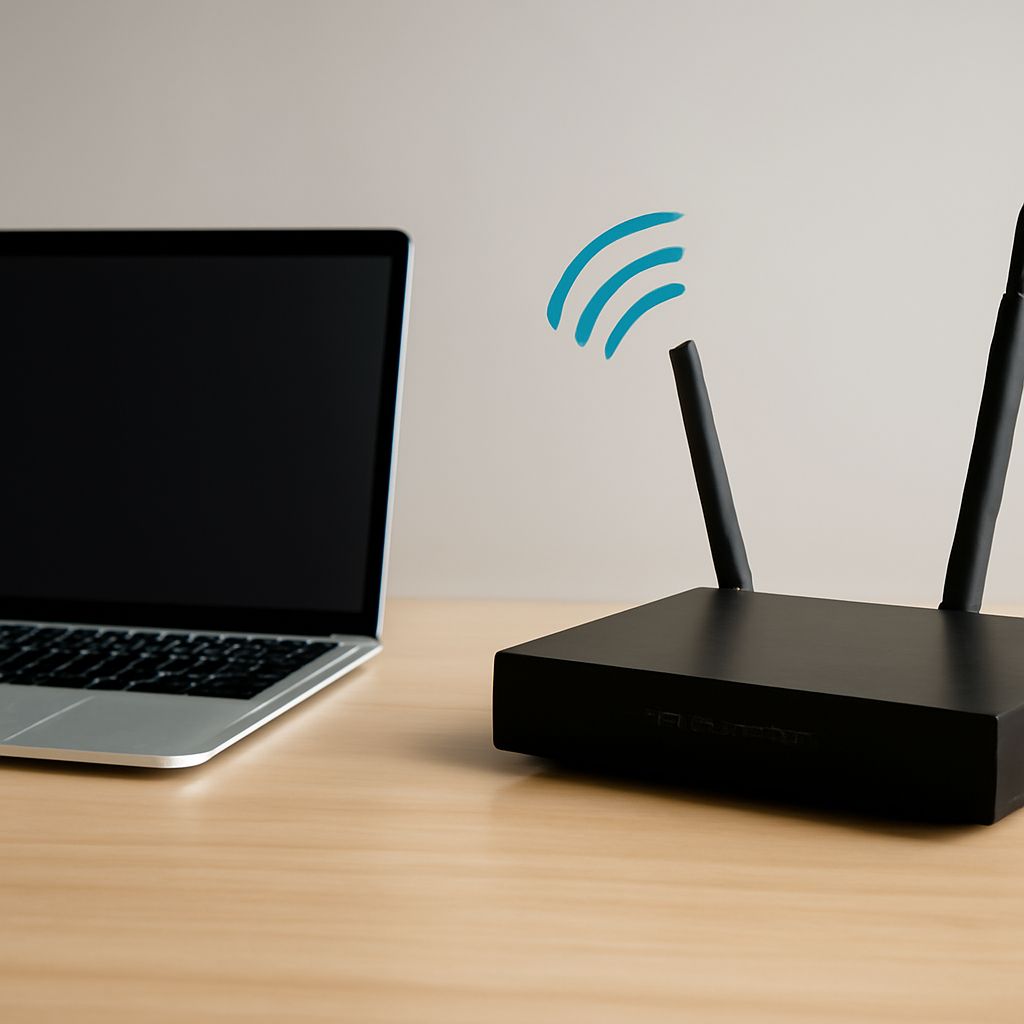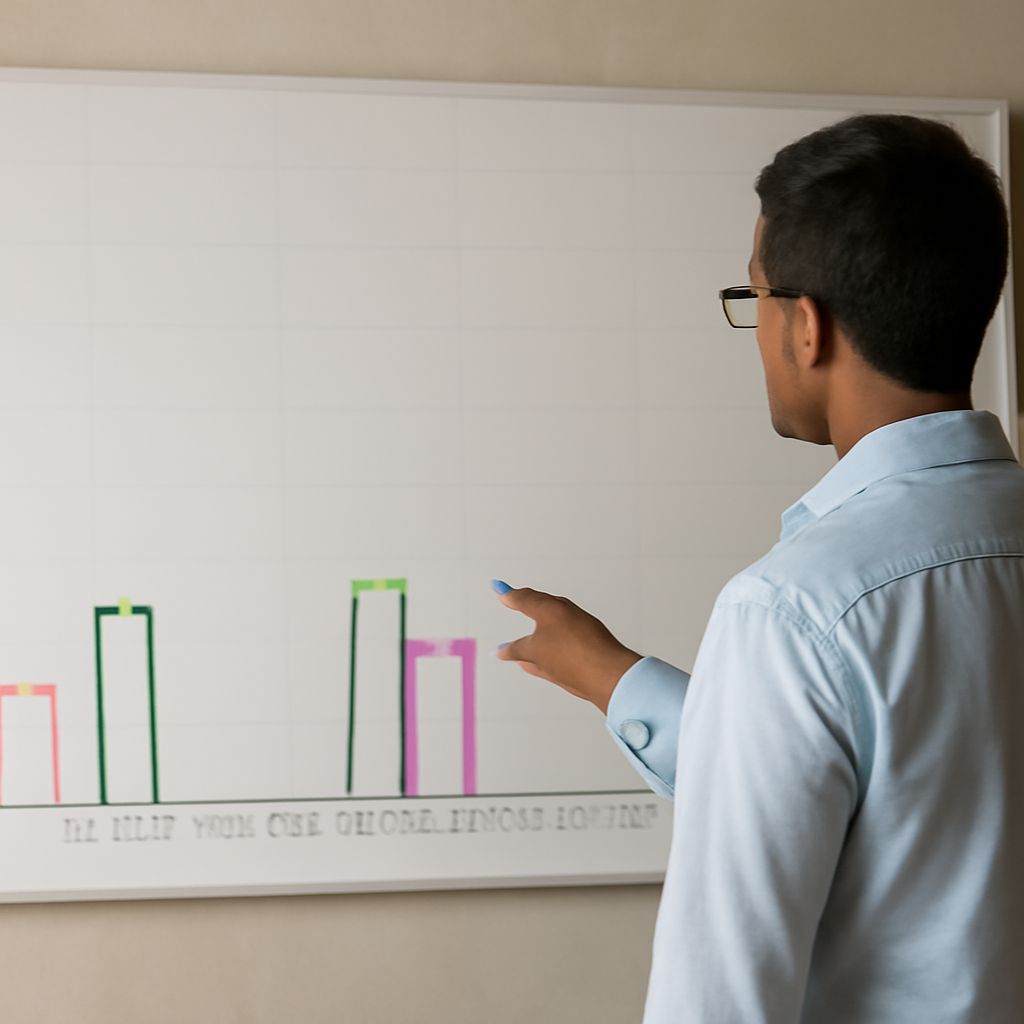
The difference between 2.4 GHz and 5 GHz is mainly a trade-off between reach and capacity. Use 2.4 GHz when coverage must pass through walls or reach distant devices; use 5 GHz when devices are relatively close to the router and need more capacity, lower congestion, or higher throughput.
For most homes, connect phones, laptops, TVs, and consoles to 5 GHz, while keeping distant smart-home devices on 2.4 GHz. Then use a local scan to choose the cleanest 5 GHz channel and test whether DFS improves performance without causing connection or stability problems.
What Is the Difference Between 2.4 GHz and 5 GHz?
Choose 2.4 GHz for reach and obstacles; choose 5 GHz for capacity
2.4 GHz travels farther and generally penetrates walls, floors, and furniture better. Its longer wavelength makes it useful for distant rooms, outdoor coverage, and devices with modest bandwidth requirements. The trade-off is less available spectrum and more interference from neighboring Wi-Fi networks, Bluetooth, cordless equipment, and some household appliances.
5 GHz has shorter range and loses strength more quickly through dense obstacles. However, it offers more channels and usually encounters less congestion, so it can deliver higher real-world throughput at short and medium distances. A strong 2.4 GHz signal is not automatically faster than a weaker 5 GHz signal; test the connection where the device is used.
Compare range, congestion, channel capacity, and device support
- Range: 2.4 GHz normally covers more area; 5 GHz works best near the access point.
- Obstacles: Walls and floors reduce 5 GHz more sharply, especially at the edge of coverage.
- Congestion: 2.4 GHz is often crowded, while 5 GHz provides more room for nearby networks.
- Channel capacity: 2.4 GHz has only a few practical non-overlapping 20 MHz channels, commonly 1, 6, and 11. 5 GHz supports more channels and wider channel bonding.
- Device support: Current phones and computers usually support 5 GHz, but older hardware and many low-cost IoT devices may support only 2.4 GHz.
How Does 5 GHz Channel Selection Work Across Channel Groups?
5 GHz channels are arranged in regional groups. The commonly encountered ranges are 36–48, 52–64, 100–144, and 149–165. Channels 36–48 are generally the easiest starting point because they are usually available without DFS. Channels 52–64 and 100–144 are typically DFS ranges. Channels 149–165 are often non-DFS, but availability, permitted power, and channel width vary by country and router.
Channel width determines how much spectrum one network occupies. Use 20 MHz for the most reliable operation in a crowded area, 40 MHz as a practical compromise, and 80 MHz when nearby interference is limited and clients support it. Use 160 MHz only when the local spectrum is unusually clean and the router and clients can use it consistently; a wider channel can create more interference and may reduce stability.
When Are 5 GHz DFS Channels Useful or Disruptive?
Understand radar detection, availability checks, and forced channel changes
5 GHz DFS channels share spectrum with systems such as weather and aviation radar. An access point must check a DFS channel before transmitting and monitor it while operating. If it detects a radar pattern, regulations require it to stop using that channel, select another permitted channel, and sometimes wait before transmitting again. The exact checks and waiting periods depend on the region and channel.
Balance extra spectrum against client compatibility, waits, and interruptions
5 GHz DFS channels can provide useful extra capacity when non-DFS channels are crowded, particularly with 80 MHz operation. They are not permanently quiet: neighboring networks may also use them, and radar events can trigger a move. Some phones, older laptops, wireless extenders, cameras, and IoT products cannot see DFS networks or connect reliably. A channel change can briefly interrupt active calls, streams, or downloads.
Use DFS when a local scan shows a clear advantage and your important clients support it. Avoid it for a network that requires predictable connectivity, or disable it if logs show radar-triggered moves, long startup waits, missing clients, or repeated disconnections.
How Do You Choose and Validate a Wi-Fi Channel?
- Scan locally: Use the router’s analyzer or a Wi-Fi scanner from the rooms that matter. Record neighboring networks, signal strength, channel overlap, and busy periods.
- Set the band and width: On 2.4 GHz, select 20 MHz and a clear non-overlapping channel. On 5 GHz, try 20 or 40 MHz in a crowded area, or 80 MHz where spectrum is clean. Start with a non-DFS group unless DFS offers a clear capacity benefit.
- Check regional options: Confirm the router’s country setting and which channel groups it legally exposes. Do not force channels through unsupported firmware settings.
- Test every client type: Check connection, roaming, latency, packet loss, and throughput on phones, computers, TVs, extenders, and IoT devices. Test at the coverage edge as well as near the router.
- Watch stability: Repeat tests during busy periods and review router logs for radar events, channel changes, authentication failures, and client drops. Keep the setting that provides consistent service, not merely the highest short speed test.