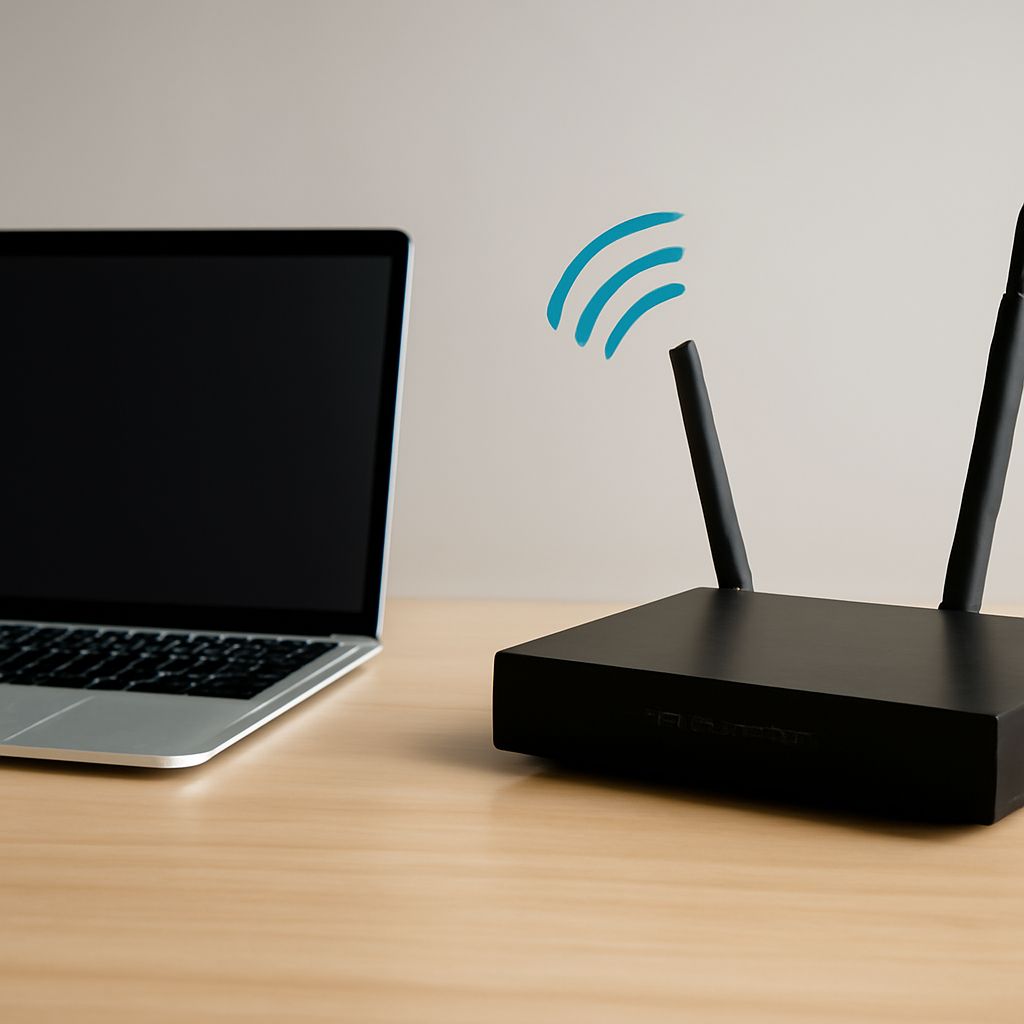
To answer “Is my router 2.4 GHz or 5 GHz?”, check the connected device’s band or the router’s client list rather than trusting the network name. A dual-band router normally provides both bands at once, so the useful question is which band a particular device is using.
SSID names such as “HomeWiFi-5G” are only labels. Band steering can move a device between bands while keeping the same name, and some routers use one SSID for both networks.
Is my router 2.4 GHz or 5 GHz? Check router status, client details, and distance
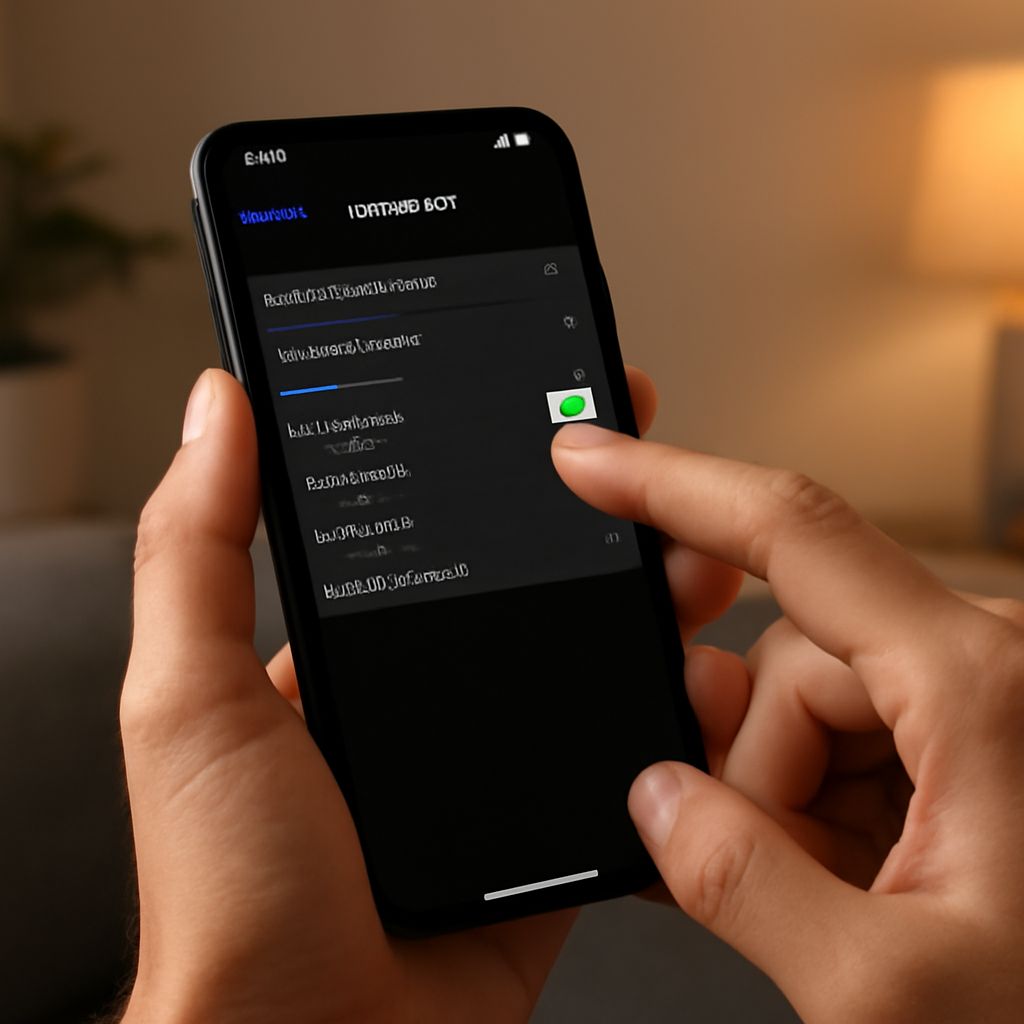
Open the router’s web interface or mobile app and look for Connected devices, Clients, or Wireless status. The entry for each device may show its frequency, band, channel, signal strength, or connection mode. A channel number also provides a useful clue: channels in the 2.4 GHz channel range differ from the channel groups used by 5 GHz.
- On Windows: open the Wi-Fi properties and look for Network band, or run netsh wlan show interfaces and inspect the channel and radio details.
- On Android: open the connected network’s details. Many phones show the frequency or band directly. On macOS, hold Option while selecting the Wi-Fi icon to view the channel and connection details.
- On iPhone or other devices without band details: use the router’s client list, temporarily give the two bands different SSIDs, or connect close to the router and then repeat the test farther away.
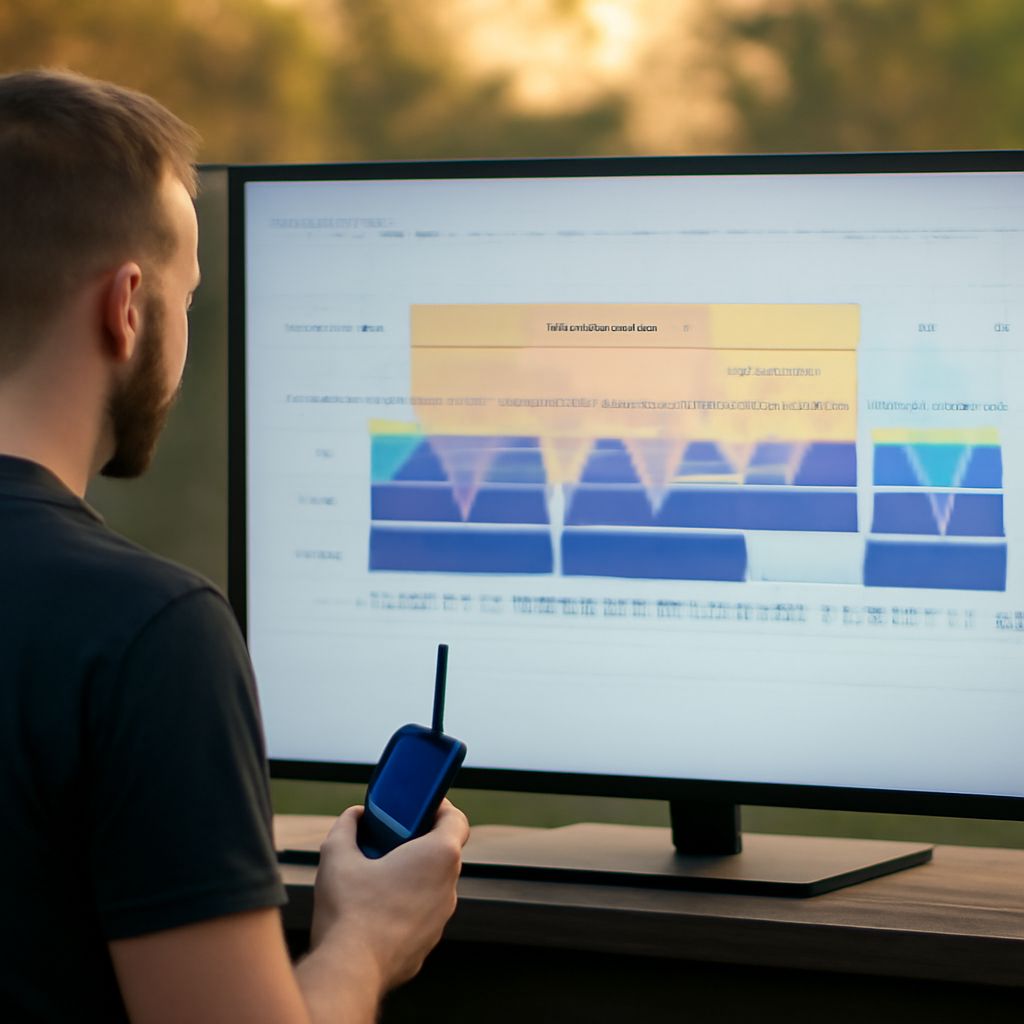
For a controlled test, use the same device and application, separate the SSIDs temporarily, and record signal strength, link rate, and actual throughput at each location. If the device changes from 5 GHz to 2.4 GHz as distance or obstruction increases, that confirms the band change without relying on the SSID.
What controls the 5 GHz range through your building?
There is no reliable single indoor distance for the 5 GHz range. The result depends on the building and equipment. 5 GHz has a higher frequency than 2.4 GHz, so its signal generally loses more strength through walls, floors, doors, and other obstacles. Brick, concrete, metal, foil-backed insulation, mirrors, and water-filled objects can reduce it substantially.
Other important variables include:
- Transmit power: routers may use different power levels for each band, and legal limits vary by channel and region.
- Antennas: antenna count, gain, placement, and orientation affect both coverage and the quality of multiple-input, multiple-output connections.
- Channel width: 80 MHz can provide higher link rates near the access point, but 40 or 20 MHz is often more resilient through interference or weak coverage.
- Client sensitivity: a phone, laptop, camera, or smart-home device may have a smaller antenna or a less sensitive radio than the router.
An open-plan room may support 5 GHz well, while the same router may struggle through several dense walls. Judge coverage by the device’s signal and performance at its real location, not by a distance estimate.
What does a DFS channel do, and why can radar detection change it?
A DFS channel uses Dynamic Frequency Selection. In supported regions, some 5 GHz channels are shared with radar systems. Before transmitting, a router may listen for radar activity. If it detects a qualifying signal during operation, it must stop using that channel and move to another permitted channel.
This can make the channel appear to change unexpectedly. A router may:
- wait before enabling a DFS channel because it must check for radar first;
- leave the channel after a detection event and announce the switch to connected clients;
- temporarily avoid that channel, or select a different one after restarting.
DFS availability depends on the country setting, router firmware, and hardware. Client compatibility also varies: some older laptops, phones, printers, cameras, and IoT devices cannot scan or connect to DFS channels. A device may therefore fail to see the network, disconnect during a channel move, or connect only after the router selects a non-DFS channel.
How should you choose settings and verify every client?
- Start with compatibility. Use a permitted non-DFS 5 GHz channel if older or low-cost clients disappear from DFS channels. Keep the router’s country or region setting accurate.
- Set width for the location. Try 80 MHz near the access point when you need speed; use 40 or 20 MHz when interference, walls, or weak signal make the connection unstable.
- Test actual coverage. With one client, measure signal, link rate, and throughput beside the router, through the required walls, and at the farthest working location. Compare the result with 2.4 GHz rather than assuming the higher band is faster everywhere.
- Check every device. Reconnect cameras, printers, speakers, and mobile devices, then confirm their band and channel in the router’s client list. If DFS events repeatedly interrupt important clients, choose a stable non-DFS channel or move those clients to 2.4 GHz.
Once the settings work, re-enable band steering or a shared SSID if desired, then verify the clients again. The router may intentionally distribute devices between bands, so the final check should be based on each device’s reported connection rather than the network name.