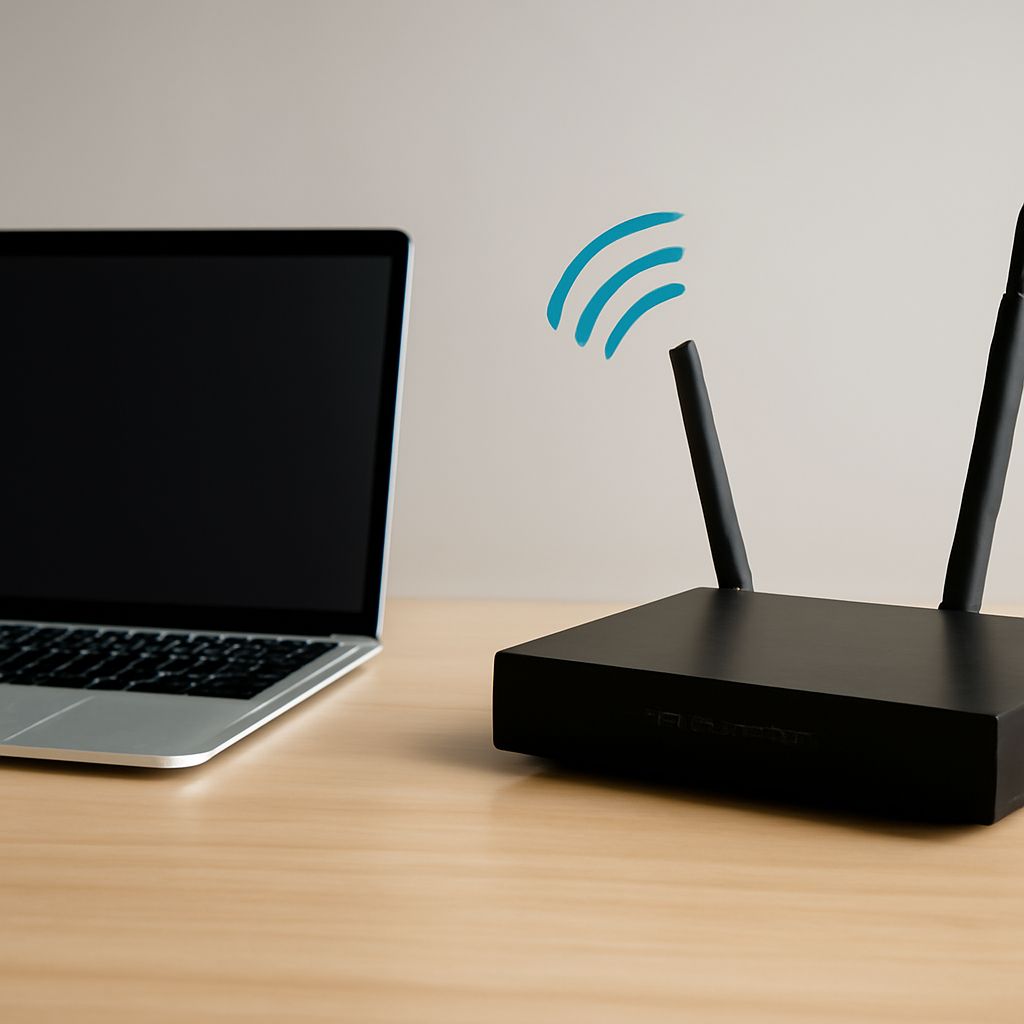
I have Wi-Fi but no internet on my phone? First determine whether the phone failed to join the network or joined it but cannot reach the internet. Test the same Wi-Fi with a second device, then test your phone on another Wi-Fi network. These comparisons show whether the fault follows the phone or stays with the network.
A missing Wi-Fi signal points to the radio or coverage. A password rejection points to authentication. A connection that never receives a local address points to DHCP, while a connection that reaches the router but not websites points to DNS, a captive portal, the router WAN, or an internet service outage.
I Have Wi-Fi but No Internet: Identify the Exact Failure Layer
Use the phone’s status and network details to identify the failure before changing settings:
- Wi-Fi is off or the network is missing: Turn off Airplane Mode, enable Wi-Fi, and move close to the router. A weak signal may appear and disappear or show only one bar.
- The network is visible but the phone will not join: An “incorrect password,” “unable to join,” or repeated password prompt indicates authentication or a saved-network problem.
- The phone joins but stays on “obtaining IP address”: It may not have received an IP address or gateway from DHCP. Without that local address, it cannot communicate with the router.
- The phone shows Wi-Fi but websites do not load: Check whether the phone has an IP address and gateway. If it can open the router’s local page but not websites, local access works and DNS, the WAN connection, or a service outage is more likely.
Now compare devices. If another device also has no internet on that Wi-Fi, investigate the router or service. If other devices work but your phone does not, investigate the phone or its account on that network. If your phone works on another Wi-Fi network, the original network is the likely scope of the problem.
My Phone Won’t Connect to Wi-Fi: Fix Authentication and Saved Networks
Start with changes that preserve your other settings:
- Turn Wi-Fi off and on, or briefly enable and disable Airplane Mode. Confirm that the phone is trying to join the intended network, not a similarly named neighbor.
- Re-enter the password carefully. Passwords are case-sensitive, and a router may reject a device after its security settings or password changed.
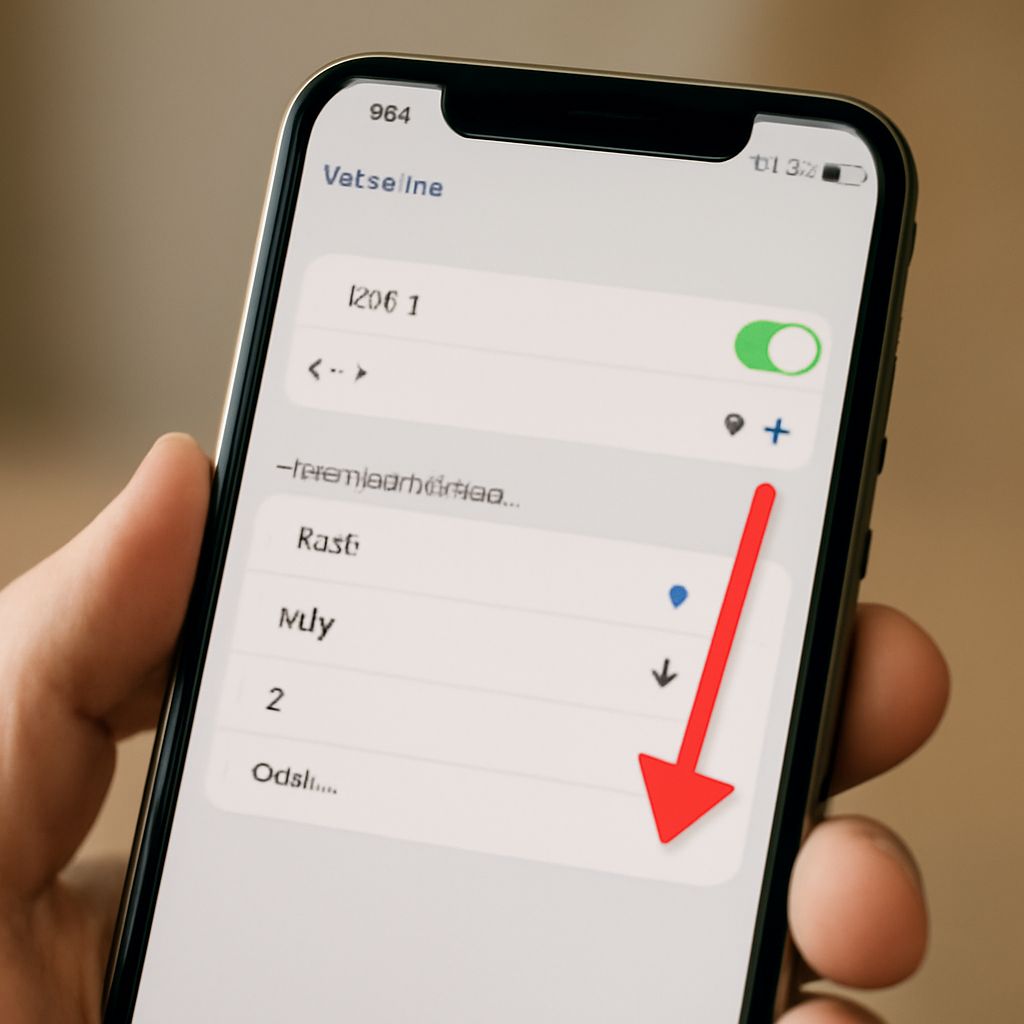
- Before forgetting the network, record the password and any required static IP, proxy, or certificate settings. Then select the network and choose Forget or Remove This Network, reconnect, and enter the password again.
- Restart the phone if it still rejects the connection. If only this phone fails, check whether the router blocks new devices or limits access by MAC address. A phone’s private or randomized MAC address can appear as a new device to the router.
Do not change router security modes or erase all saved networks until you know the issue is authentication. Those changes can disconnect working devices and remove settings you may need later.
Why Doesn’t My Phone Connect to Wi-Fi? Check DHCP and Captive Portals
If the phone says it is connected but has no local address, open the network’s details and look for an IP address and gateway. A blank address, a repeated “obtaining IP” message, or an address beginning with 169.254 usually indicates a DHCP failure rather than a password failure.
- Toggle the phone’s Wi-Fi connection, then forget and rejoin that network if the lease does not renew.
- Check the router’s DHCP setting and available address pool if other devices also cannot obtain addresses. A full pool, a disabled DHCP server, or a stuck lease can prevent new connections.
- If the network belongs to a hotel, school, airport, or business, open a browser after joining and look for a sign-in or terms page. This captive portal must be completed before internet access is allowed.
- Temporarily disable a VPN, ad blocker, or custom Private DNS setting while completing the portal. Restore it afterward. Incorrect DNS can also make a completed portal appear offline.
If the phone receives an IP address and gateway but still cannot browse, try opening the router’s local address. A working router page confirms local access; failure to open it means the problem remains between the phone and router.
Check the Router, WAN, DNS, and Service Before Resetting Only the Affected Layer
Use the comparison results to choose the next check:
- Every device fails on this Wi-Fi: Check the router’s WAN or internet status, modem or fiber device lights, and the cable linking the router to the modem or wall connection. Restart the modem and router in the manufacturer’s recommended order, then wait for the WAN connection to return. Check the provider’s service-status page or contact support if the WAN remains down; this may be a service outage.
- Other devices work, but websites fail only on this phone: Set the phone’s DNS to Automatic, and temporarily disable VPN or Private DNS. If the router page opens but domain names do not, DNS is the likely failing layer.
- The phone fails on every Wi-Fi network: Focus on the phone’s Wi-Fi radio, network settings, or hardware. Install pending system updates only when the phone has another connection available, and test again after a normal restart.
- Only one router rejects the phone: Review that router’s access control, DHCP pool, security mode, and device list. Avoid changing settings that affect working devices unless the comparison confirms the router is involved.
Reset only the affected layer, in this order: toggle Wi-Fi, rejoin the affected network, restart the phone, restart the router when the whole network is affected, and finally use the phone’s Reset Network Settings option if the phone fails across networks. Record Wi-Fi passwords, VPN details, static addresses, and certificates first, because a network reset removes saved connection information. Do not factory-reset the phone or router before confirming which side fails.